One of the most frustrating issues in Adobe Photoshop is encountering the error message: "Could not complete your request because of a program error." This typically occurs when trying to save a file (Save or Save As), preventing you from preserving your work. The error is often caused by corrupted preferences, font conflicts, layer issues, cache buildup, permission problems, or corrupted elements in the document itself.
This error has been reported across various Photoshop versions, including recent ones as of 2025. Fortunately, there are several reliable troubleshooting steps to resolve it. Follow them in order, starting with the simplest.
1. Try Saving in a Different Format or Using Export
Before diving into deeper fixes, attempt a quick workaround.
- Go to File > Export > Quick Export as PNG (or Export As for more options).
- This bypasses the standard save process and often succeeds when regular saving fails.
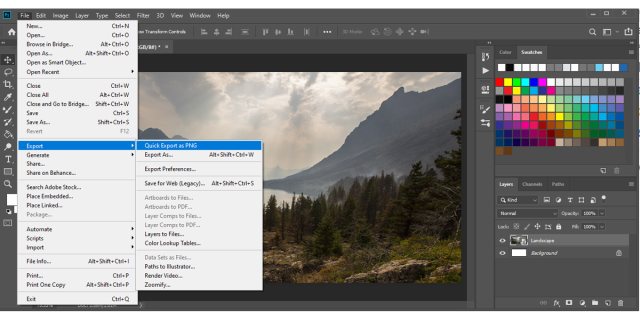
If this works, you can then open the exported file and try saving it normally.
Alternatively, use File > Save As and choose a different format like JPEG or TIFF.
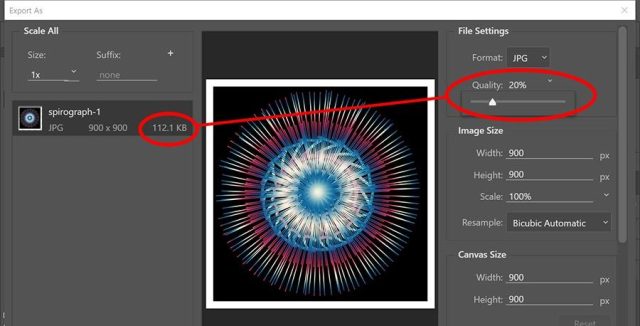
How to change the default "Export As" setting? - Adobe Product ...
2. Flatten the Image
Complex layers, smart objects, or adjustment layers can sometimes trigger the error.
- In the Layers panel, go to Layer > Flatten Image (or right-click the top layer and select Flatten Image).
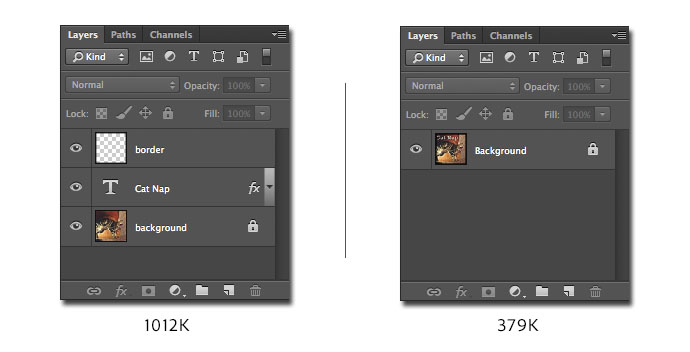
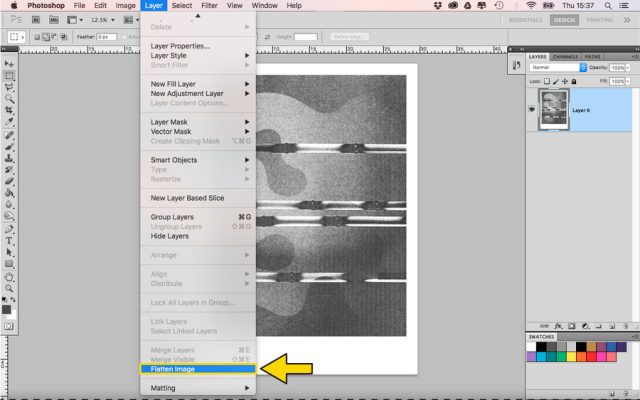
After flattening, try saving again. Note: This merges all layers, so duplicate your file first if you need to preserve layers.
3. Purge Cache
Accumulated cache can cause internal errors.
- Go to Edit > Purge > All (or specific options like Undo, Clipboard, Histories).
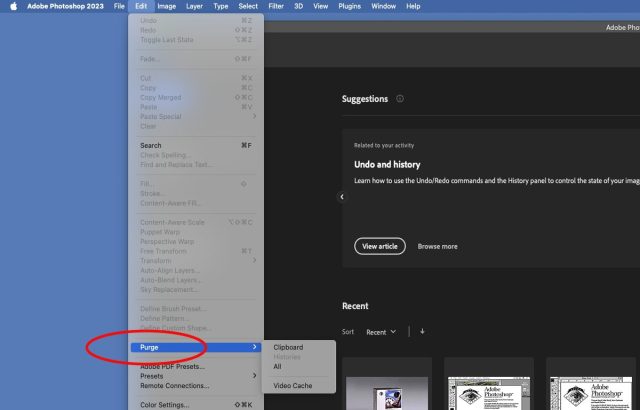
This clears memory and cache without affecting your file.
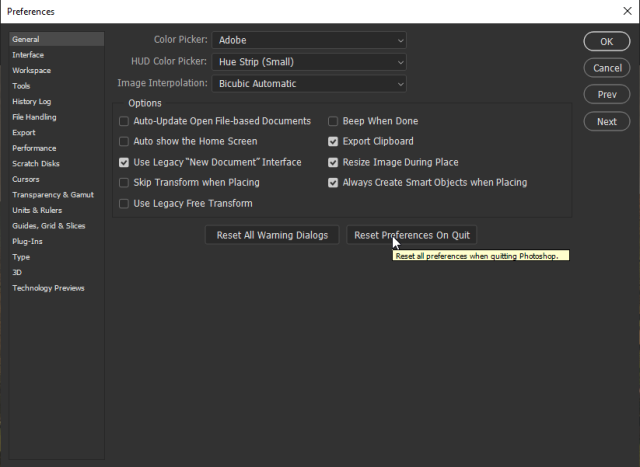
4. Reset Photoshop Preferences
Corrupted preferences are a common culprit.
- Hold Ctrl + Alt + Shift (Windows) or Cmd + Opt + Shift (Mac) immediately after launching Photoshop.
- When prompted, confirm to delete the settings file.
Alternatively, navigate manually via Edit > Preferences > General.
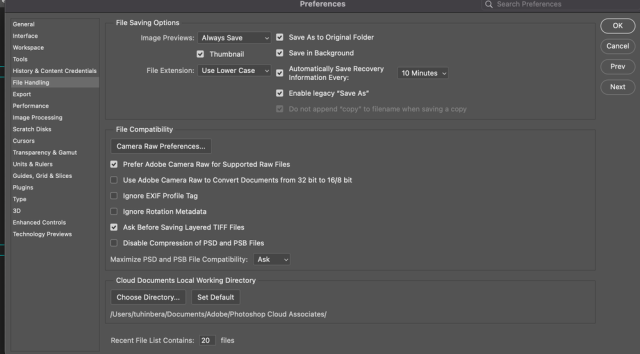
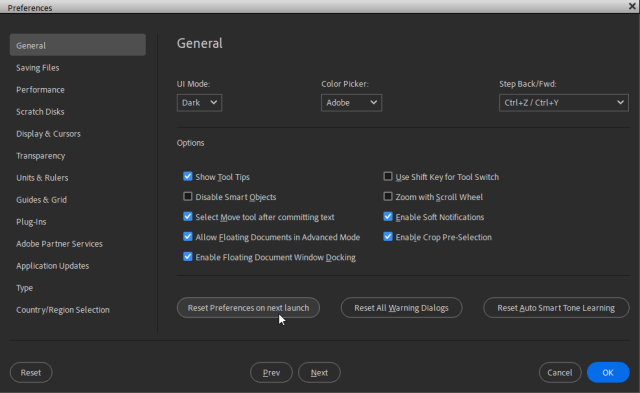
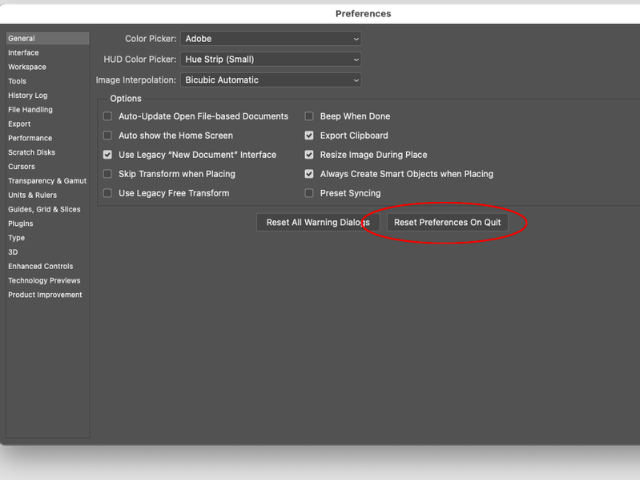
This resets Photoshop to default settings but preserves brushes, actions, etc.
5. Run Photoshop as Administrator (Windows) or Check Permissions (Mac)
Permission issues can block saving.
- On Windows: Right-click the Photoshop icon and select Run as administrator.
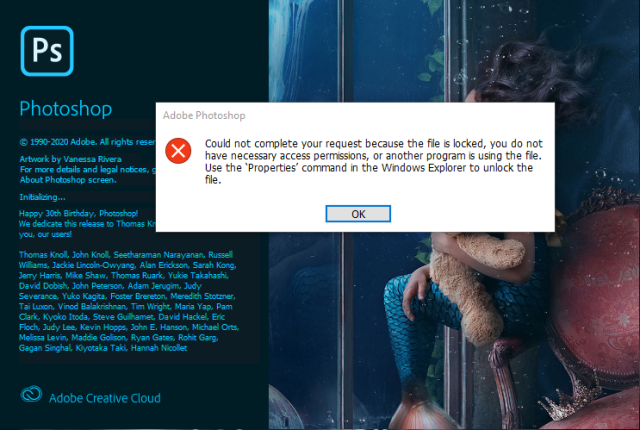
Photoshop 2020 on Windows 10 won't run unless laun... - Adobe ...
Also, ensure the save destination folder has write permissions.
6. Disable Font Preview or Troubleshoot Fonts
Faulty fonts often cause program errors during save.
- In Edit > Preferences > Type, uncheck Enable Font Preview or adjust font settings.
- Alternatively, use a font manager to deactivate suspicious third-party fonts temporarily.
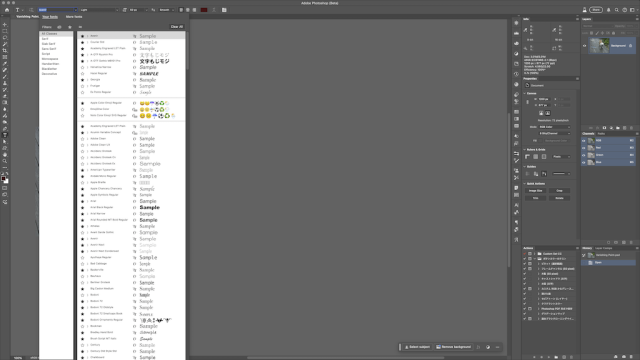
Test by deactivating recently installed fonts.
Additional Tips
- Update Photoshop to the latest version via the Creative Cloud app.
- If the issue persists on a specific file, copy layers to a new document (Select All > Copy > New File > Paste).
- Restart your computer after trying these steps.
In most cases, one of these solutions—especially resetting preferences or exporting alternatively—resolves the error. If nothing works, consider reinstalling Photoshop or contacting Adobe Support with details about your version and OS.
