Adobe Photoshop is a powerful tool for designers, but users occasionally encounter the frustrating error message: "Could not complete your request because of a program error". This issue is particularly common when trying to modify text layers, such as changing fonts. It often stems from corrupted font caches, incompatible or damaged fonts, corrupted preferences, or conflicts with system resources.
As of late 2025, this remains a reported problem in Photoshop versions, including the latest updates. Fortunately, there are several reliable fixes. Below, we'll outline the most effective step-by-step solutions, with illustrative screenshots for key operations.
1. Identify and Replace Problematic Fonts (Quickest Fix for Font-Related Errors)
This error frequently occurs because a specific font in your document is corrupted, missing, or incompatible with Photoshop's text engine.
- Select the text layer causing the issue.
- In the Character panel, try changing the font to a standard one (e.g., Arial or Helvetica).
- If switching to a particular font triggers the error, that font is likely the culprit.
- Solution: Replace it with a similar font, or rasterize the text layer (right-click the layer > Rasterize Type) to convert it to pixels.
If the problem persists across documents, proceed to the next steps.
2. Reset Photoshop Preferences
Corrupted preferences are one of the most common causes of program errors.
- Open Photoshop.
- Go to Edit > Preferences > General (on Windows) or Photoshop > Preferences > General (on macOS).
- Click Reset Preferences on Quit.
- Confirm and restart Photoshop.
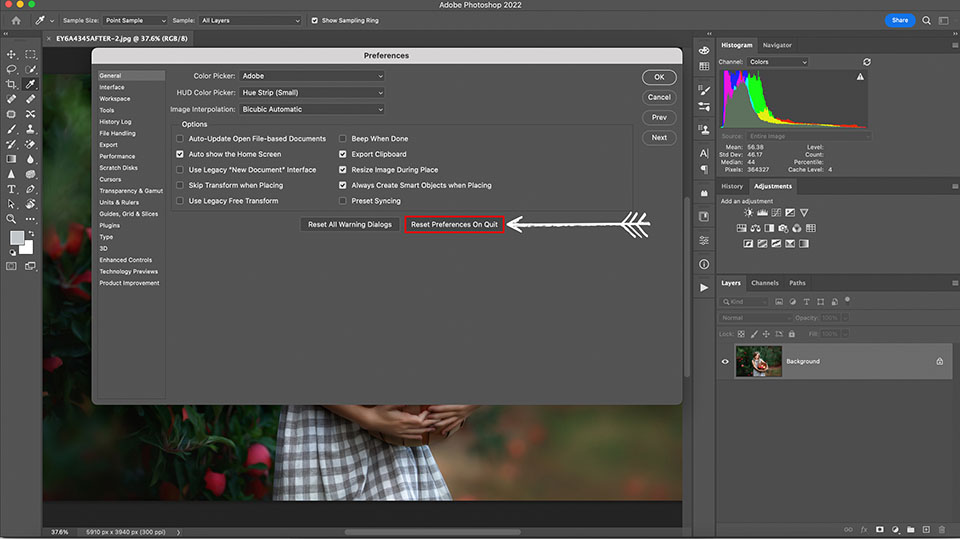
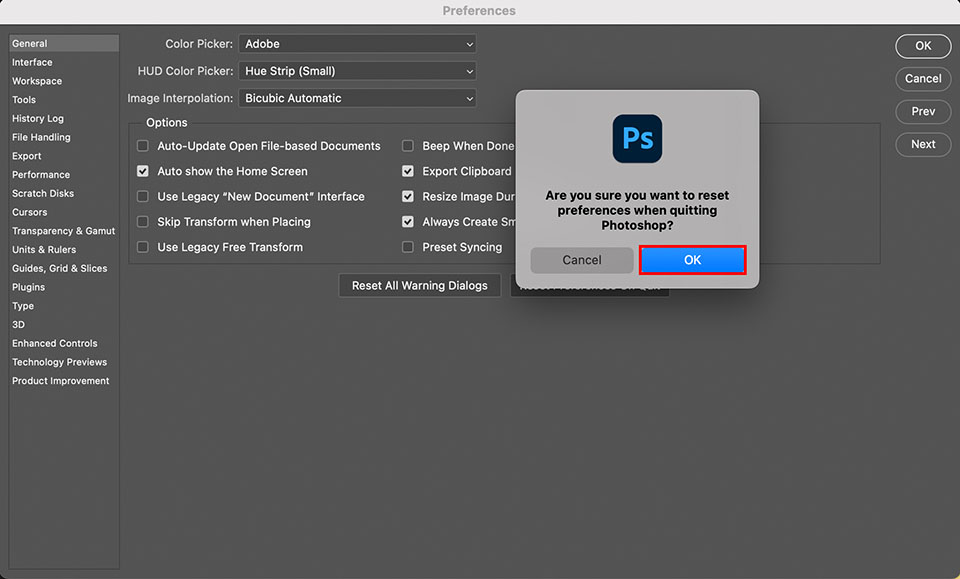
Alternatively, hold Ctrl + Alt + Shift (Windows) or Cmd + Option + Shift (macOS) while launching Photoshop to trigger the reset dialog directly.
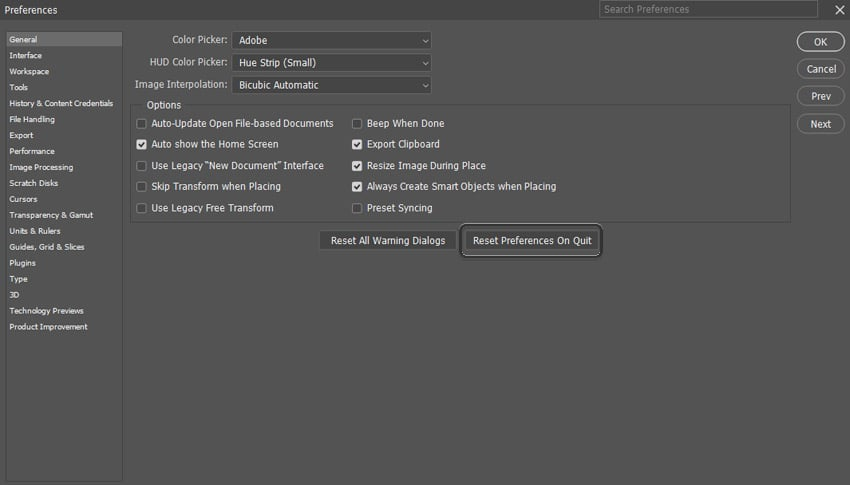
How to Reset Photoshop Preferences (Reset to Default) | Envato Tuts+
3. Delete Photoshop's Font Cache
Photoshop maintains a cache of available fonts. If this cache becomes corrupted (common after installing/uninstalling fonts), it can cause errors when accessing or changing fonts.
- Close Photoshop.
- Navigate to the font cache folder:
- Windows: C:\Users\[Your Username]\AppData\Roaming\Adobe\Adobe Photoshop [Version]\CT Font Cache
- macOS: ~/Library/Caches/Adobe/Adobe Photoshop [Version]/CT Font Cache
- Delete the files inside (e.g., AdobeFnt*.lst files).
Some users also delete system-level font cache files for a thorough clear.
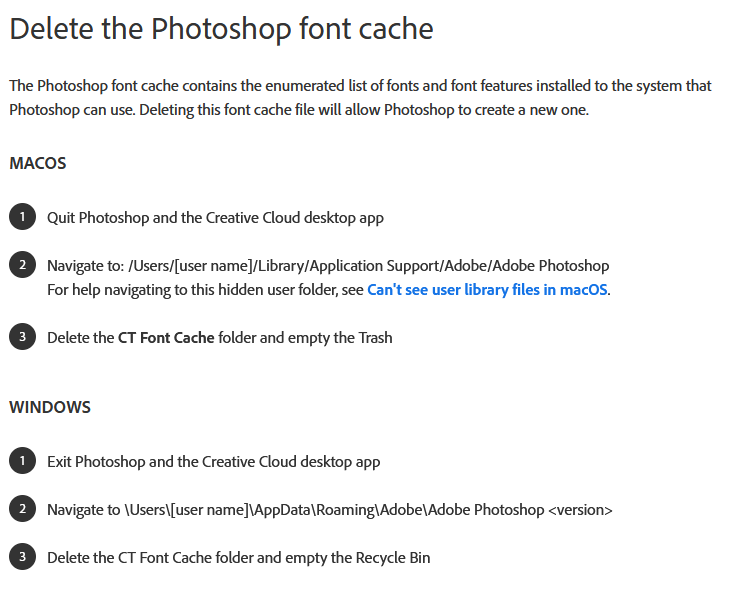
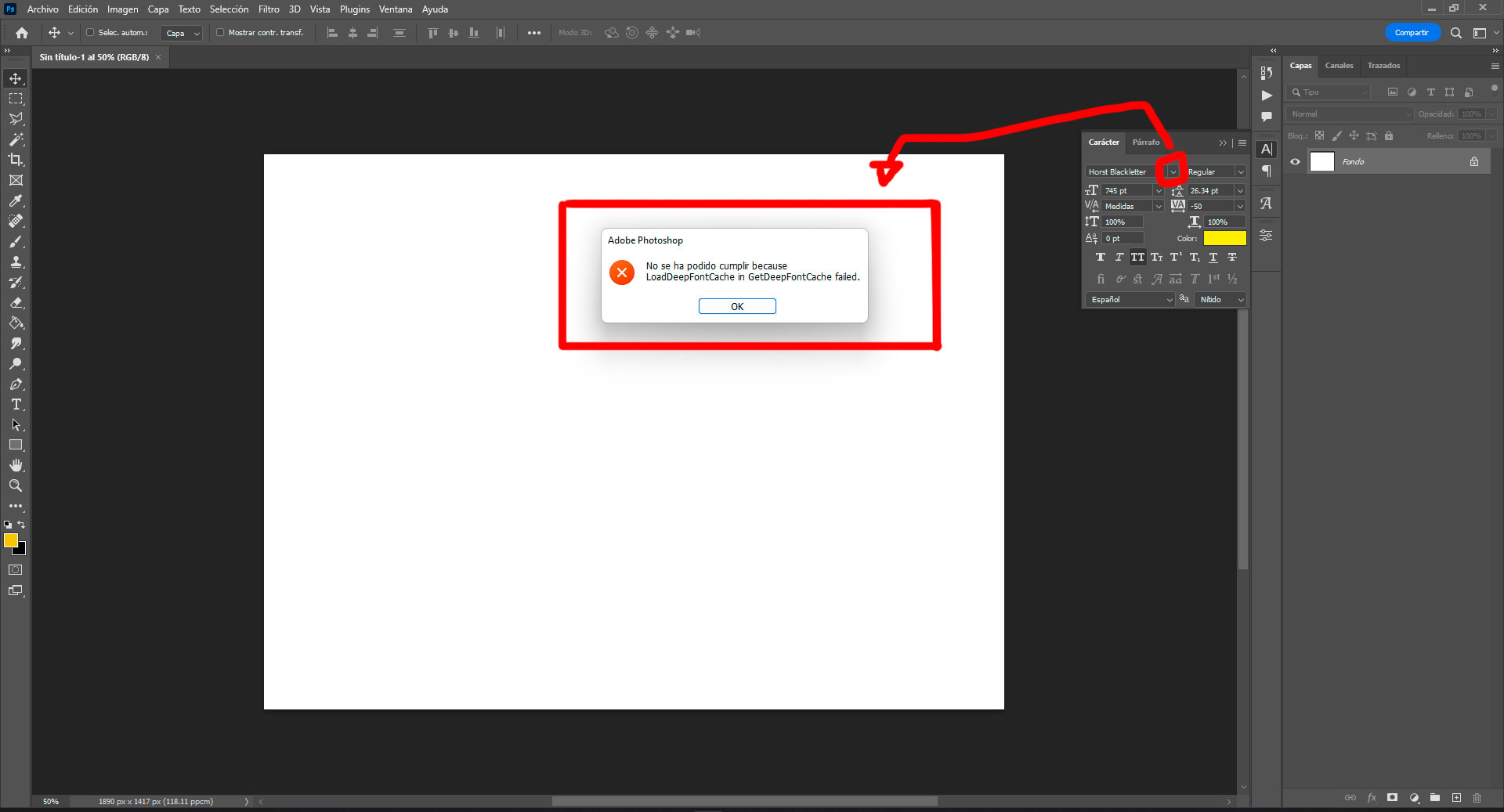
Restart Photoshop—the cache will rebuild automatically.
4. Purge Cache and Disable GPU Acceleration (If Needed)
- In Photoshop, go to Edit > Purge > All to clear memory caches.
- If the error involves tools or rendering, temporarily disable GPU usage:
- Edit > Preferences > Performance.
- Uncheck Use Graphics Processor.
- Restart Photoshop.
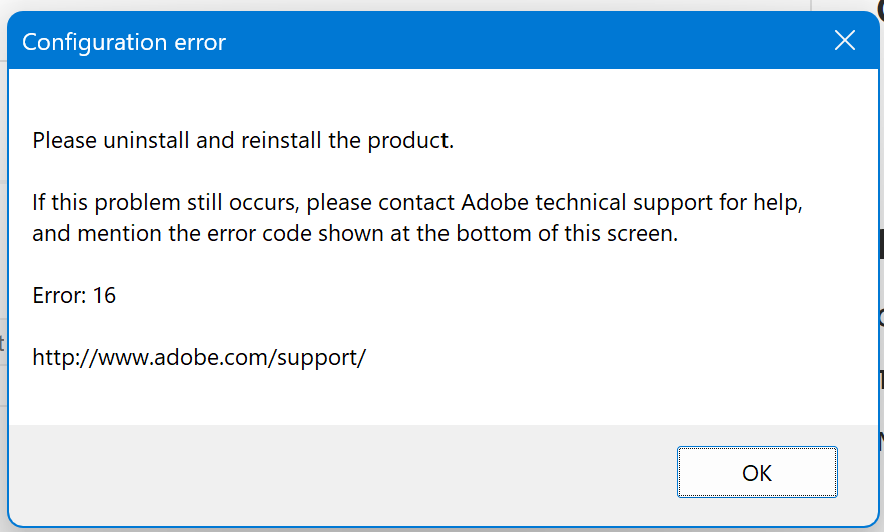
5. Update or Reinstall Photoshop
Outdated versions or corrupted installations can trigger this error.
- Open the Creative Cloud app.
- Check for Photoshop updates and install the latest version.
- If issues continue, uninstall and reinstall via Creative Cloud.
Additional Tips
- Test in a new document: If the error only occurs in specific files, the issue may be file-specific (e.g., a damaged text layer).
- Remove third-party plugins: Disable them via Edit > Preferences > Plug-Ins.
- Check for damaged system fonts: Use tools like Font Book (macOS) or validate fonts in Windows.
In most cases, resetting preferences or clearing the font cache resolves the issue when changing fonts. Start with these before more advanced steps. If the problem persists, consult Adobe's support forums for version-specific advice.
These steps should get you back to editing text smoothly!
