How to Enable Mouse Gestures in Microsoft Edge?
Microsoft has already introduced a feature policy to enable mouse gestures, but users still need to manually configure it to use this functionality. So, how exactly do you set it up? Below is the step-by-step method we’d like to share with you.
Method to Enable Mouse Gestures in Microsoft Edge
-
- In the browser’s address bar, enter
edge://settings/helpand press Enter to check your browser version. You need to upgrade to Microsoft Edge version 114 or later to enable the gesture feature. As shown in the image below: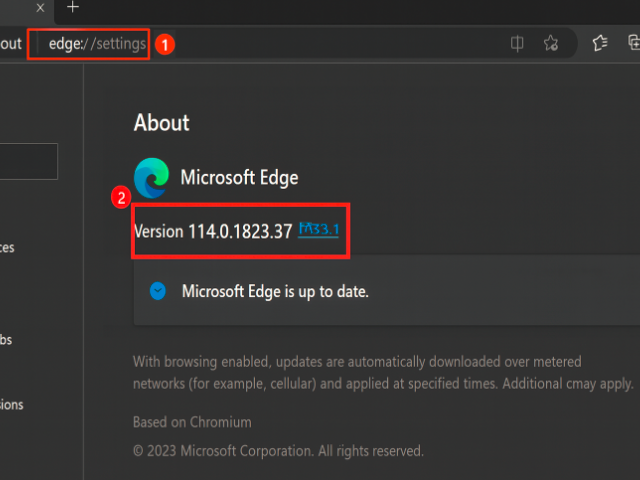

- Right-click the Microsoft Edge shortcut and select Properties. As shown in the image below:
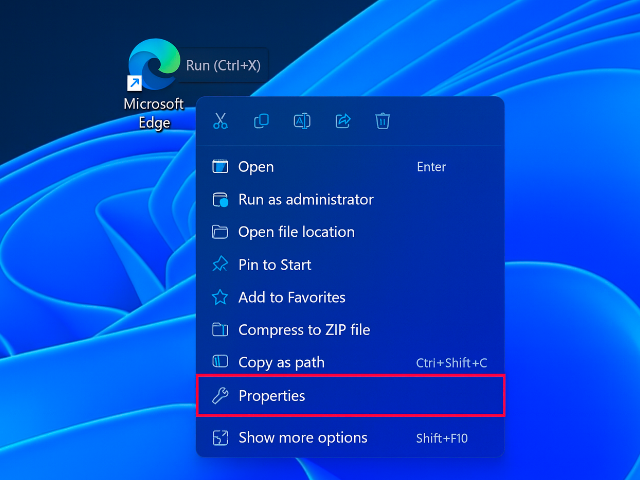
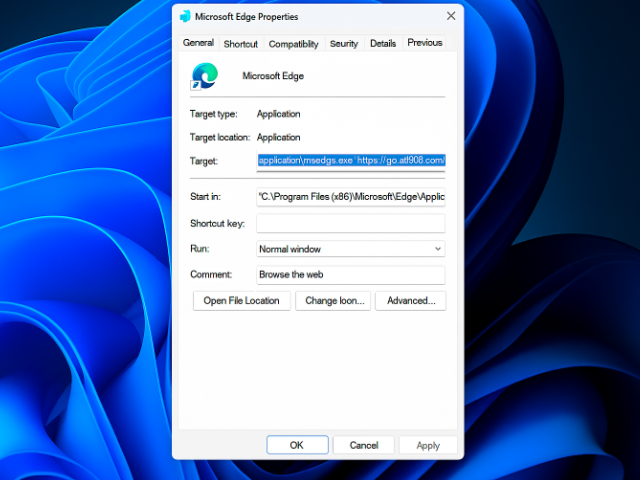
- In the Target field, go to the end of the path, add a space, and then paste the following command:
--enable-features=msEdgeMouseGestureDefaultEnabled,msEdgeMouseGestureSupportedClick OK. As shown in the image below:

- Double-click the modified shortcut to relaunch Microsoft Edge. As shown in the image below:
- In the browser’s address bar, enter
edge://settings/MouseGestureand press Enter to view or modify your mouse gesture settings. As shown in the image below: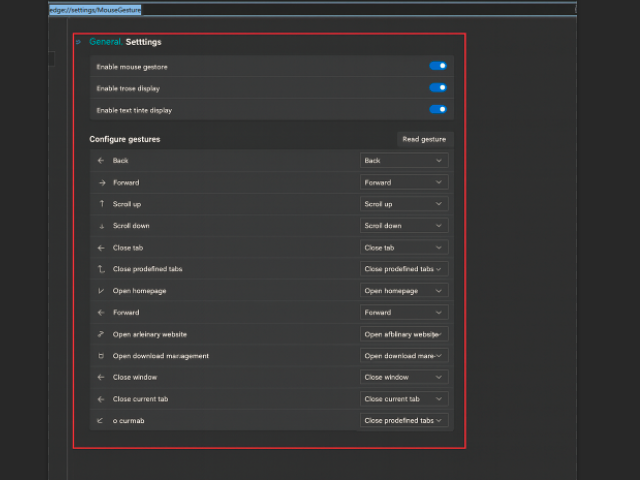
- In the browser’s address bar, enter
That’s the complete guide on enabling mouse gestures in Microsoft Edge on Windows 11. We hope this article helps you!
