If you're encountering an error in Adobe Photoshop stating something like "Could not synchronize color settings" , this is a common issue related to Adobe's color management system. It typically occurs when Photoshop attempts to sync color profiles across Adobe Creative Cloud apps (like Illustrator, InDesign, or via Adobe Bridge) but fails due to file permissions, missing files, version mismatches, or configuration conflicts. This error often appears on startup and doesn't prevent Photoshop from running, but it can be annoying and may affect color consistency across apps.
Fortunately, there are several reliable fixes. Below, we'll cover the most effective solutions with step-by-step instructions.
Common Cause: Synchronization Failure
This error is handled by Adobe Bridge, which manages suite-wide color settings.
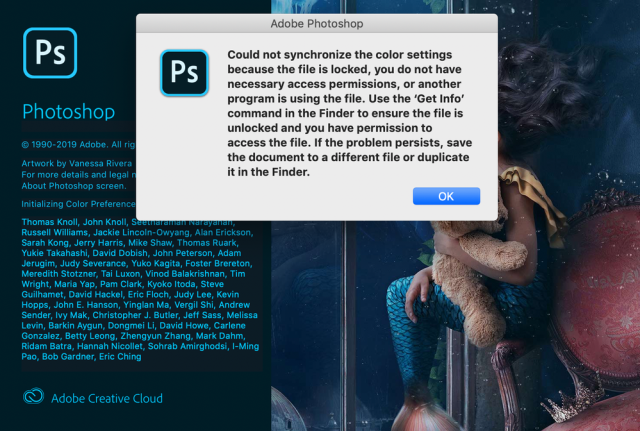
PHOTOSHOP CC 2020 ERRORS - JavaScript Code Was Mis... - Adobe ...
The above image shows a typical synchronization error message in Photoshop.
Solution 1: Synchronize via Adobe Bridge (Recommended for Multi-App Users)
If you use multiple Adobe apps, synchronize settings properly:
- Open Adobe Bridge (launch it from your Creative Cloud apps or directly).
- Go to Edit > Color Settings (or Creative Suite Color Settings in older versions).
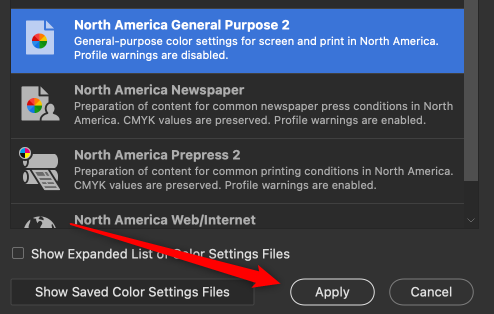
How to Sync Color Settings Across Adobe Apps
The image above illustrates selecting a preset in Bridge's Color Settings dialog.
- Choose a preset (e.g., "North America General Purpose 2" or a custom one).
- Click Apply. This syncs settings across all Adobe apps.
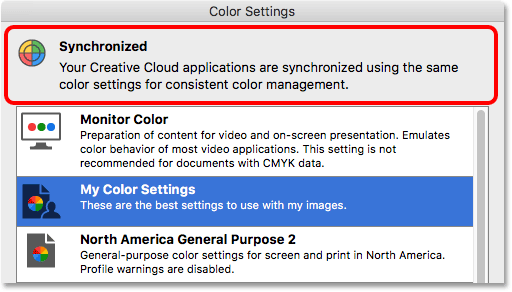
Sync Photoshop's Color Settings With All Creative Cloud Apps
After applying, you should see a "Synchronized" message.
Restart Photoshop—the error should disappear.
Solution 2: Manually Adjust Color Settings in Photoshop
Access the Color Settings dialog:
- In Photoshop, go to Edit > Color Settings (or press Ctrl+Shift+K / Cmd+Shift+K).
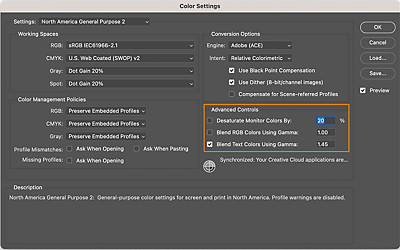
Color settings in Photoshop
This shows the path and the Color Settings window.
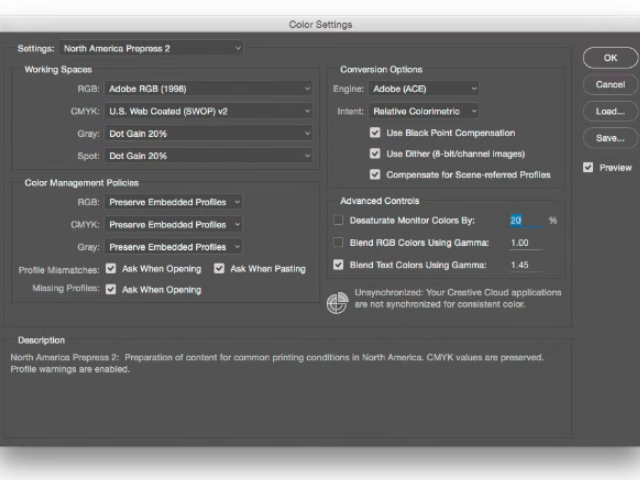
How to setup color preference in Adobe Photoshop color settings ...
A full view of the Color Settings dialog box.
- Choose a preset from the dropdown (e.g., "Monitor Color" for basic use).
- Click OK. This applies settings locally to Photoshop.
Solution 3: Disable Color Management (Quick Fix if Synchronization Isn't Needed)
If you only use Photoshop and don't need cross-app consistency, turn off color management to bypass the sync attempt:
- Open Edit > Color Settings.
- In the Color Management Policies section, set RGB, CMYK, and Gray to Off.
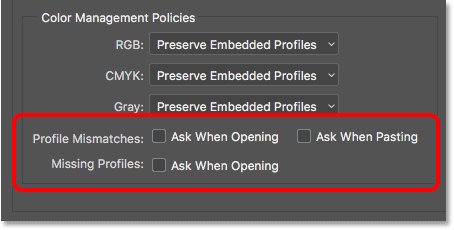
Photoshop Essential Color Settings
The checkboxes for policies are highlighted here—uncheck or set to "Off."
- Uncheck any profile mismatch warnings if prompted.
- Click OK.
This is a popular workaround mentioned in many user forums and prevents the synchronization prompt entirely.
Additional Troubleshooting Steps
- Check Permissions (Mac Users): Go to ~/Library/Application Support/Adobe/Color/Settings and ensure read/write permissions.
- Update Apps: Ensure all Adobe apps are updated via Creative Cloud.
- Reset Preferences: Hold Alt+Ctrl+Shift (Windows) or Option+Cmd+Shift (Mac) on Photoshop launch to reset.
- Reinstall Bridge/Photoshop: As a last resort if the issue persists.
After applying one of these fixes (starting with Solution 3 for simplicity), restart Photoshop. The error should no longer appear, and color settings will function normally.
If the problem continues, provide more details like your Photoshop version, OS, and exact error message for further help. Color management is powerful but can be finicky— these steps resolve it for most users!
