The error message "The procedure entry point could not be located in the dynamic link library" prevents Adobe Photoshop from launching. This is usually caused by corrupted or mismatched Microsoft Visual C++ Redistributable packages, damaged system files, conflicting DLLs, or issues with the Photoshop installation itself. It affects various versions, including recent ones as of 2025.
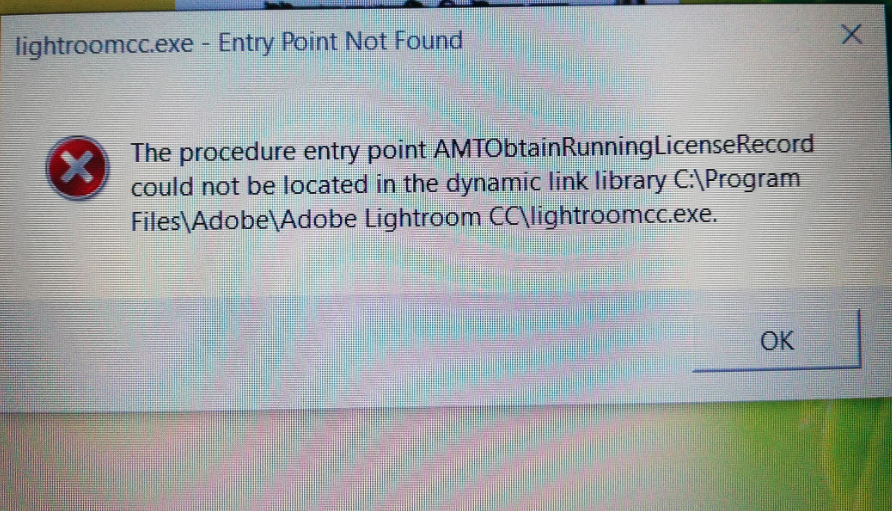
Here's what the error typically looks like:
![Solved] Entry Point Not Found Error on Windows](https://pcsoftweb.com/wp-content/uploads/2025/12/How-to-Fix-Entry-Point-Not-Found-Error-640x384.jpg)
Follow these steps in order. Most users resolve it with the first few.
1. Repair or Reinstall Microsoft Visual C++ Redistributables
This is the most common fix, as Photoshop relies on these runtime libraries.
- Download the latest Visual C++ Redistributables from the official Microsoft site (search for "Visual C++ Redistributable latest supported downloads").
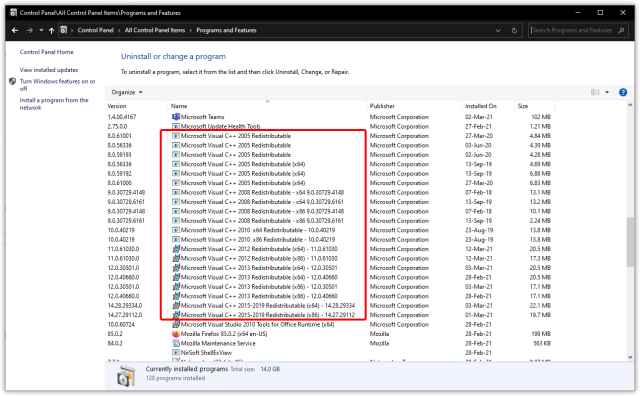
- First, uninstall existing versions: Go to Control Panel > Programs and Features, search for "Microsoft Visual C++", and uninstall all entries (both x64 and x86).
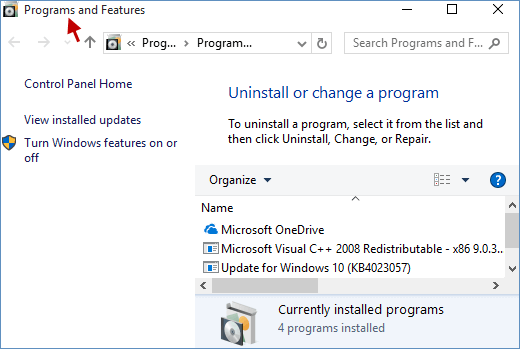
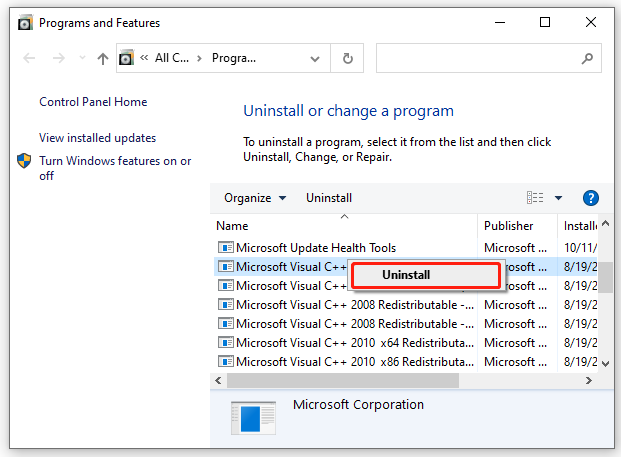
- Restart your computer, then install the downloaded packages (run both x86 and x64 versions).
2. Run System File Checker (SFC)
Corrupted Windows system files can cause DLL entry point issues.
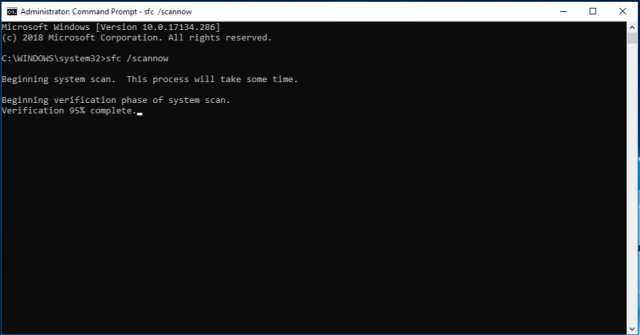
- Press Win + R, type cmd, right-click and run as administrator.
- Type sfc /scannow and press Enter.
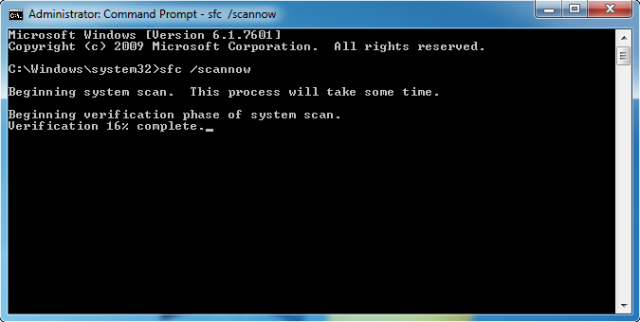
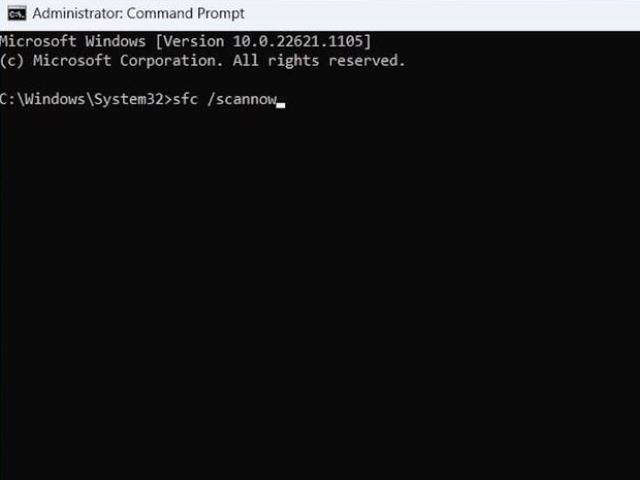
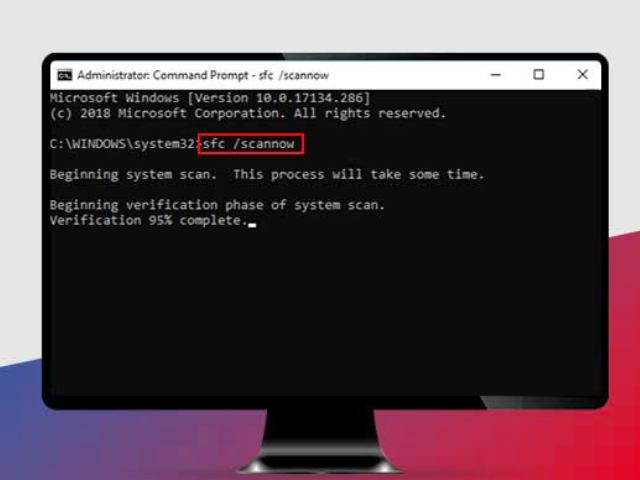
Let it complete (may take 10-30 minutes), then restart and try launching Photoshop.
3. Reinstall Photoshop via Creative Cloud
A clean reinstall often resolves installation-specific problems.
- Open the Adobe Creative Cloud app.
- Go to the Apps tab, find Photoshop, click the three dots, and select Uninstall.
- After uninstalling, restart your computer.
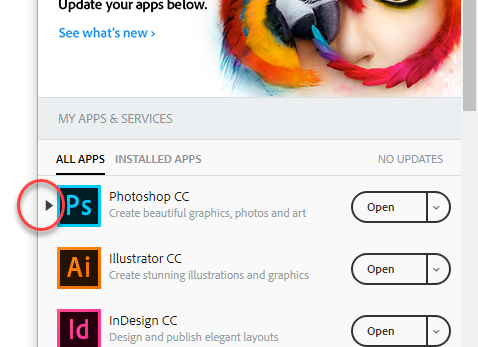
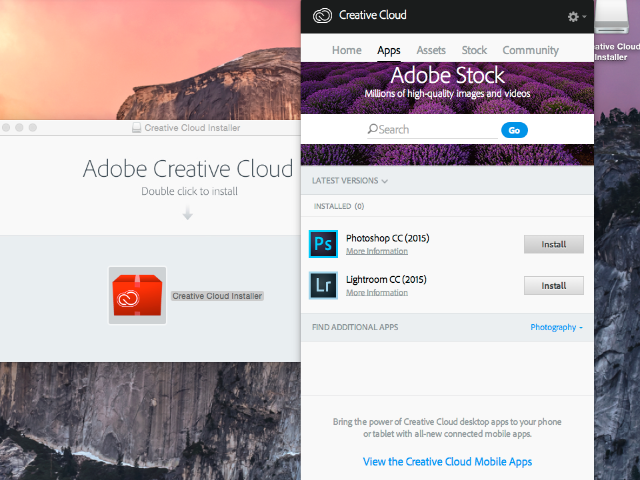
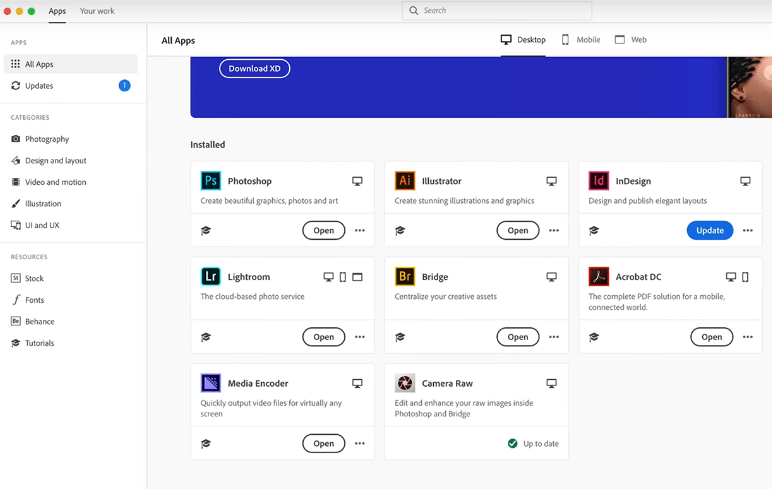
- Then reinstall Photoshop from Creative Cloud.
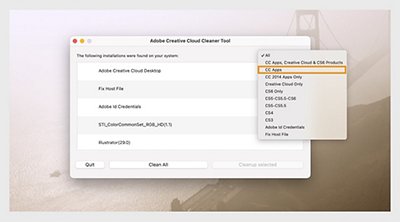
For a thorough clean: Download and run the Adobe Creative Cloud Cleaner Tool from Adobe's website before reinstalling.
4. Check for Windows Updates
Outdated system components can cause compatibility issues.
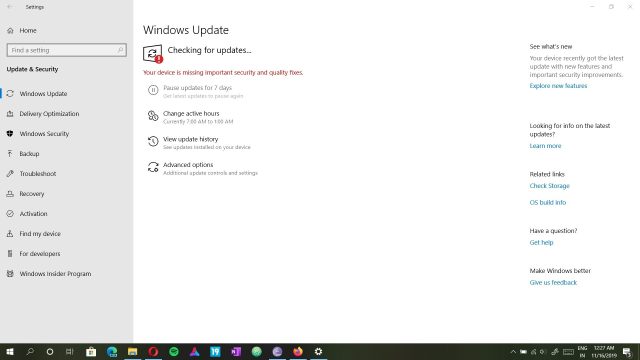
- Go to Settings > Windows Update > Check for updates and install any available updates.
5. Additional Steps If Needed
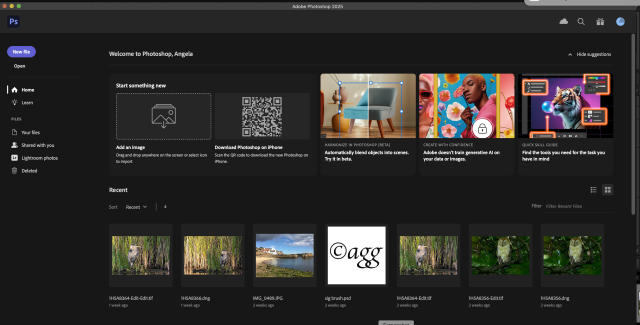
- Launch Photoshop in safe mode: Hold Shift key while clicking the Photoshop icon (this disables plugins).
Re: I cannot open Photoshop without holding down t... - Adobe ...
- Disable third-party plugins or antivirus temporarily.
- If using a cracked version, switch to a genuine Adobe subscription, as pirated copies often trigger this error due to modified DLLs.
These steps fix the issue for the vast majority of users—starting with Visual C++ reinstall is highly recommended. If the problem persists, contact Adobe Support with your Photoshop version and exact error details.
