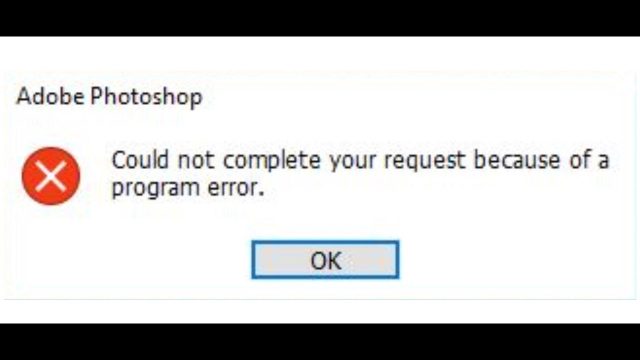
The error message "Could not complete your request because of a program error" is a common issue in Adobe Photoshop that prevents users from saving files using Save or Save As. This problem can occur in various versions, including the latest as of 2025, and is typically caused by corrupted preferences, font conflicts, layer complexities, cache buildup, or permission issues.
Don't panic—most cases can be resolved quickly. Follow these steps in order, testing save after each one.
The Error Message
Here's what the error typically looks like:
1. Quick Workaround: Export Instead of Save
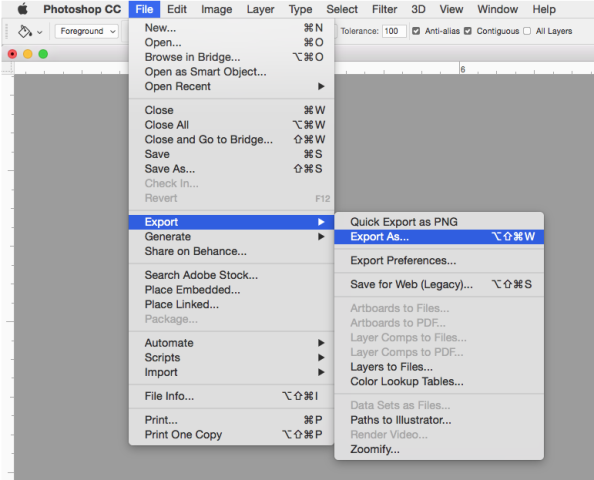
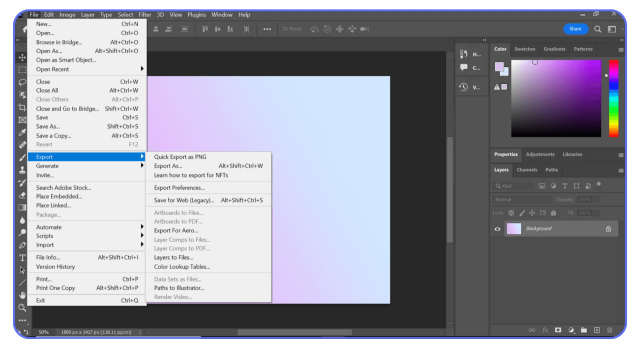
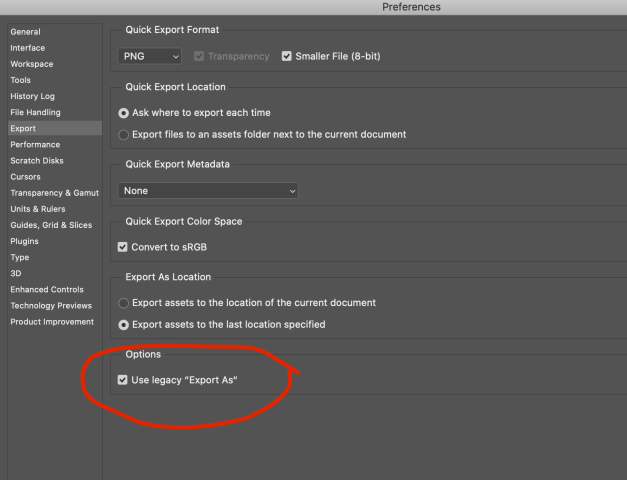
Try exporting the file first, as it often bypasses the error.
- Go to File > Export > Export As (or Quick Export as PNG for faster results).
Once exported, open the new file and attempt a normal save.
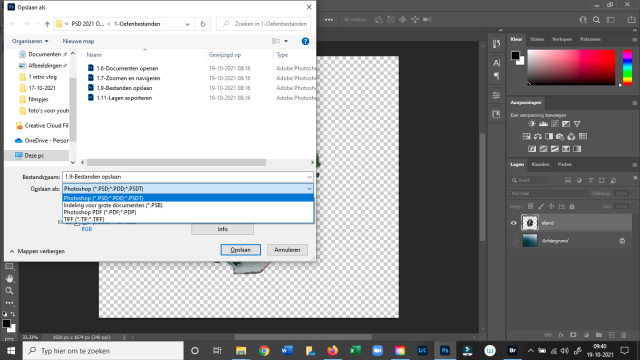
2. Save As a Different Format
Use File > Save As and select a different file type, such as PNG, JPEG, or TIFF.
3. Flatten the Image
Complex layers or smart objects may trigger the error.
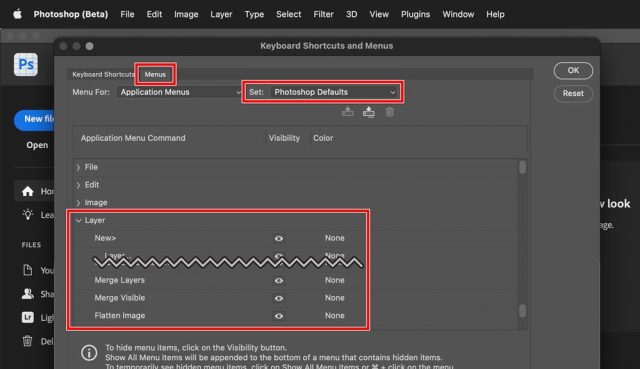
- In the Layers panel, go to Layer > Flatten Image.
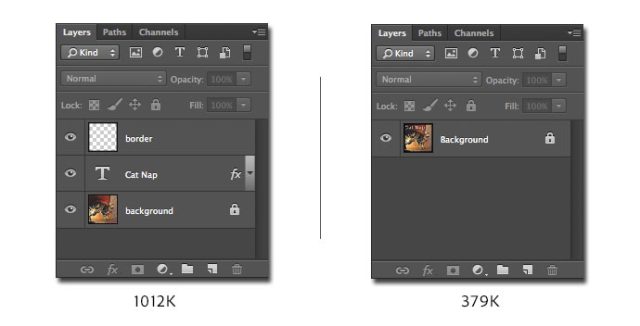
Duplicate your file first to preserve layers if needed.
4. Purge Cache
Clear accumulated cache to free up memory.
- Go to Edit > Purge > All.

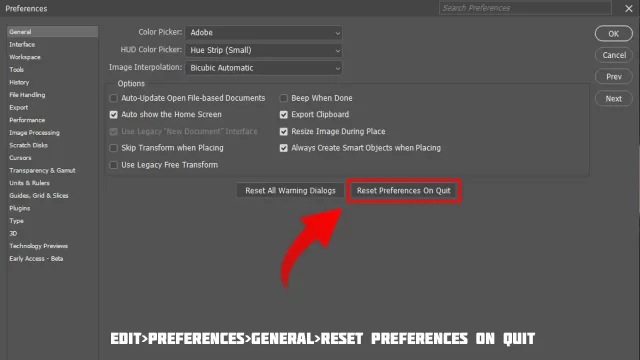
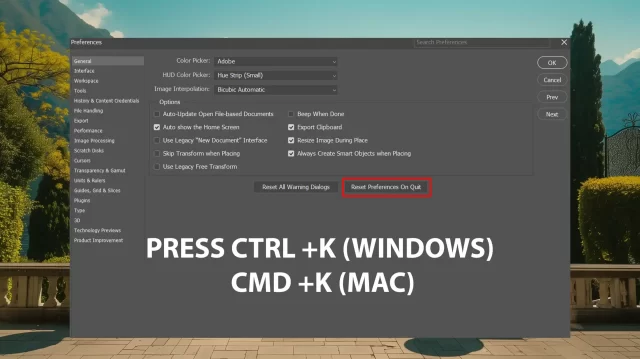
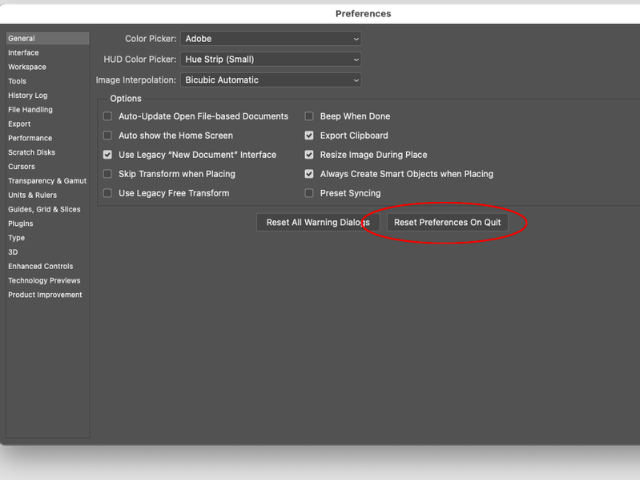
5. Reset Photoshop Preferences
This fixes many issues caused by corrupted settings.
- Launch Photoshop while holding Ctrl + Alt + Shift (Windows) or Cmd + Option + Shift (Mac). Confirm to delete preferences when prompted.
6. Run as Administrator (Windows) or Check Permissions
Permission problems can block saves.
- Right-click the Photoshop icon and select Run as administrator.

Always run a program in administrator mode in Windows 10 - CNET
Ensure the save folder has full write permissions.
7. Disable Font-Related Issues
Faulty fonts are a frequent cause.
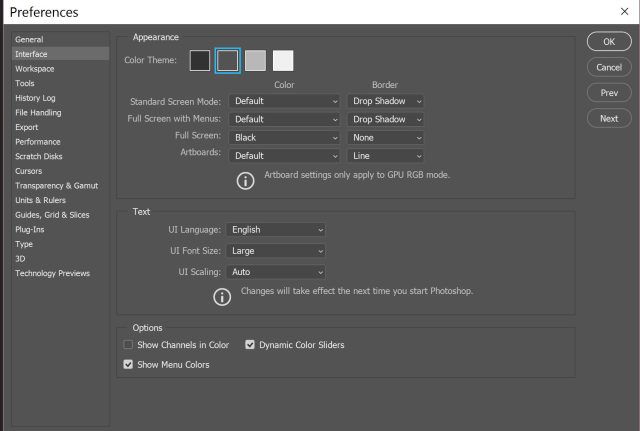
- Go to Edit > Preferences > Type and uncheck font preview options, or deactivate recent fonts using a font manager.

8. Copy Layers to a New Document
If the issue is file-specific:
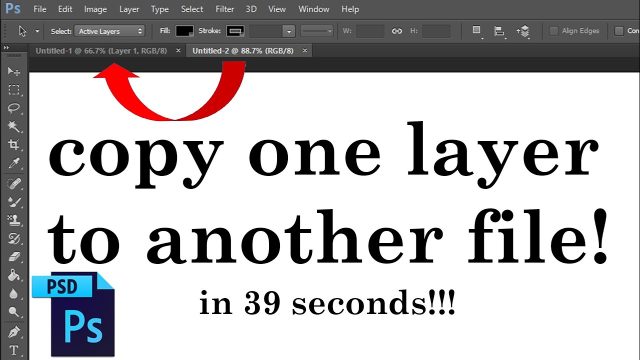
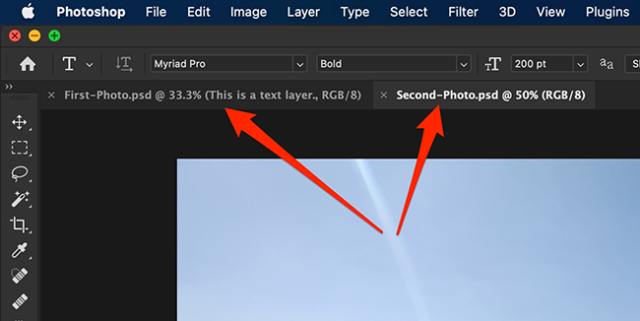
- Select all (Ctrl/Cmd + A), copy merged (Ctrl/Cmd + Shift + C), then paste into a new file.
Additional Tips
- Update Photoshop via Creative Cloud.
- Restart your computer.
- If persistent, reinstall Photoshop or contact Adobe Support.
These steps resolve the issue for most users. Start with exports and preference resets—they're the most effective!
