what to do if Windows 11 has a shared printer error 0x00000040?
The shared printer error 0x00000040 on Windows 11 often appears when attempting to connect to a network-shared printer, displaying a message like "The specified network name is no longer available." This issue can stem from network connectivity problems, outdated drivers, security restrictions, or compatibility issues, especially when sharing printers with older Windows versions. Fortunately, several troubleshooting steps can resolve it. Follow these methods in order, restarting your computer after each one to test if the error persists. Ensure the host computer has the printer properly shared and that both devices are on the same network.
Preliminary Checks
Before diving into fixes, verify the basics:
- Confirm the printer is powered on and connected to the host PC.
- On the host PC, go to Settings > Bluetooth & devices > Printers & scanners, select the printer, and ensure sharing is enabled under Printer properties > Sharing tab.
- Temporarily disable any third-party antivirus software, as it might interfere with network connections.
Step 1: Restart the Print Spooler Service
A stalled Print Spooler service is a common culprit for printer errors. Restarting it can clear temporary glitches.
- Press Windows key + R to open the Run dialog box.
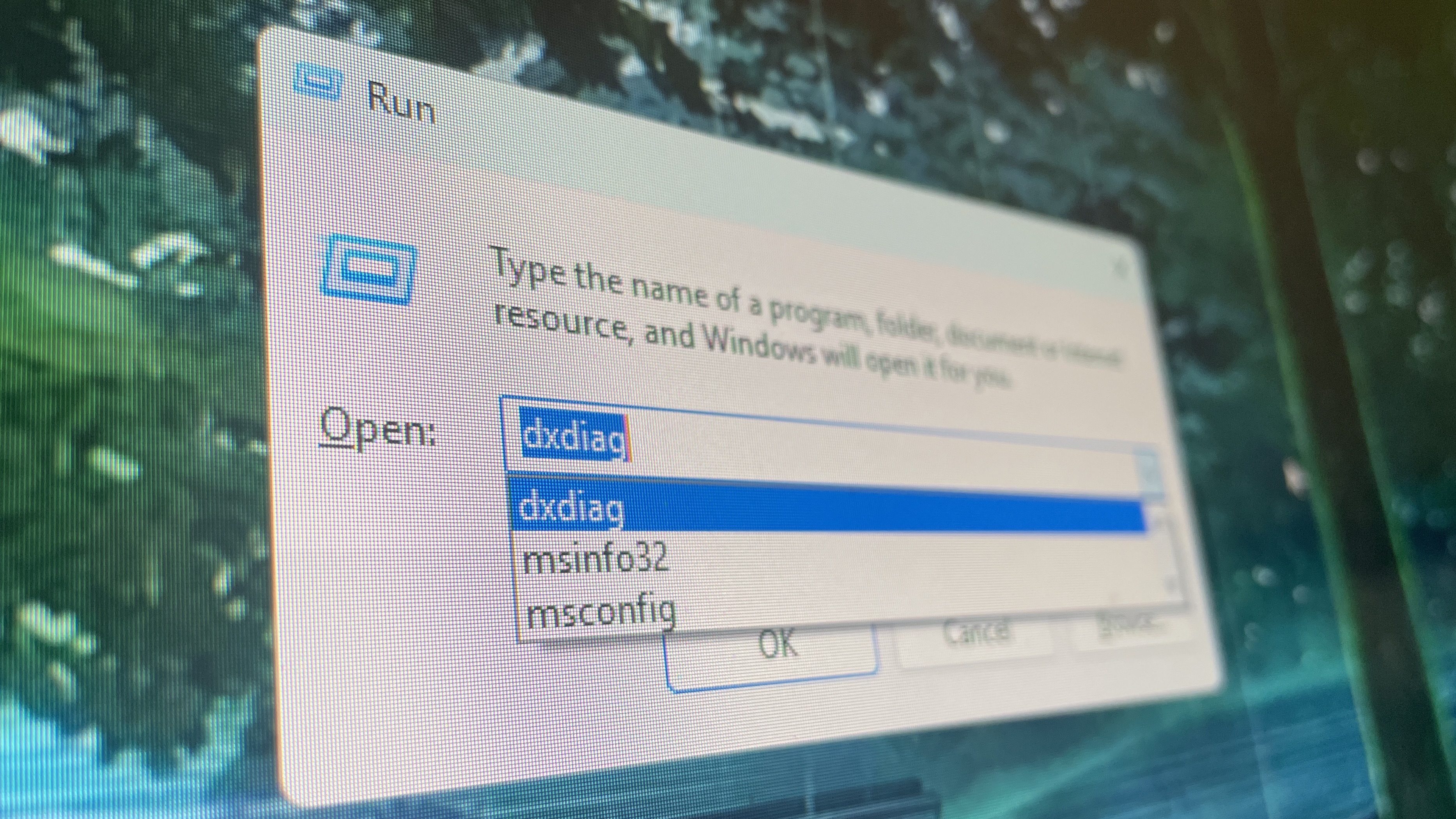
Looks like the Run dialog box is getting a sleek new look on ...
- Type services.msc and press Enter to open the Services window.
- Scroll down to find "Print Spooler," right-click it, and select Restart. If it's not running, click Start.
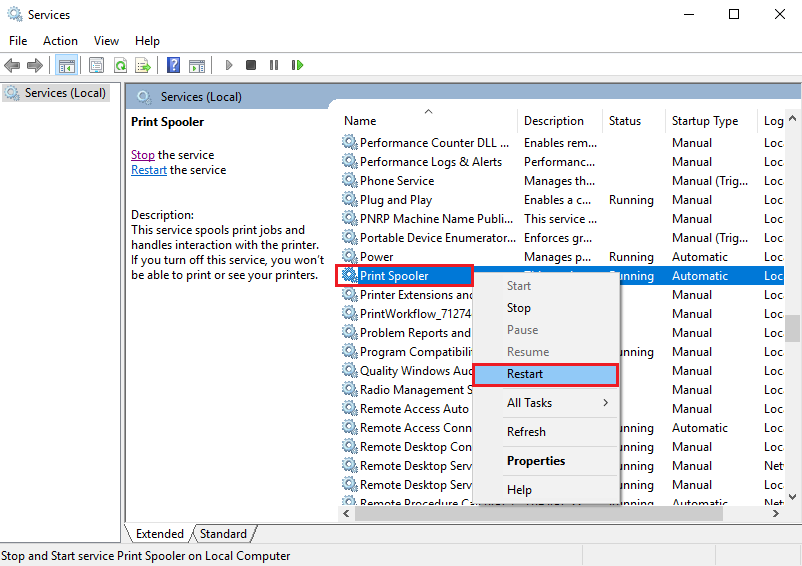
How to restart the Print Spooler Service on Windows 11 - Micro Center
This step refreshes the printing queue and often resolves connectivity issues.
Step 2: Flush the DNS Cache
DNS cache corruption can prevent your PC from resolving the network name of the shared printer.
- Search for "Command Prompt" in the taskbar, right-click it, and select Run as administrator.
- In the Command Prompt window, type ipconfig /flushdns and press Enter. You should see a confirmation message that the DNS Resolver Cache has been flushed.
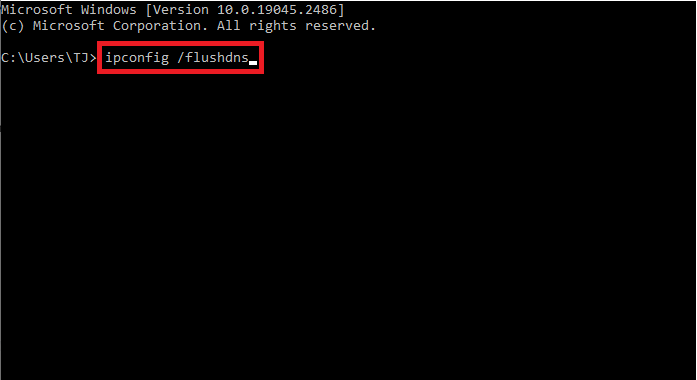
How to Flush DNS in Windows 10 and Windows 11
Close the Command Prompt and try connecting to the printer again.
Step 3: Update or Reinstall Printer Drivers
Outdated or incompatible drivers frequently cause error 0x00000040.
- Open Settings (Windows key + I) and navigate to Bluetooth & devices > Printers & scanners.
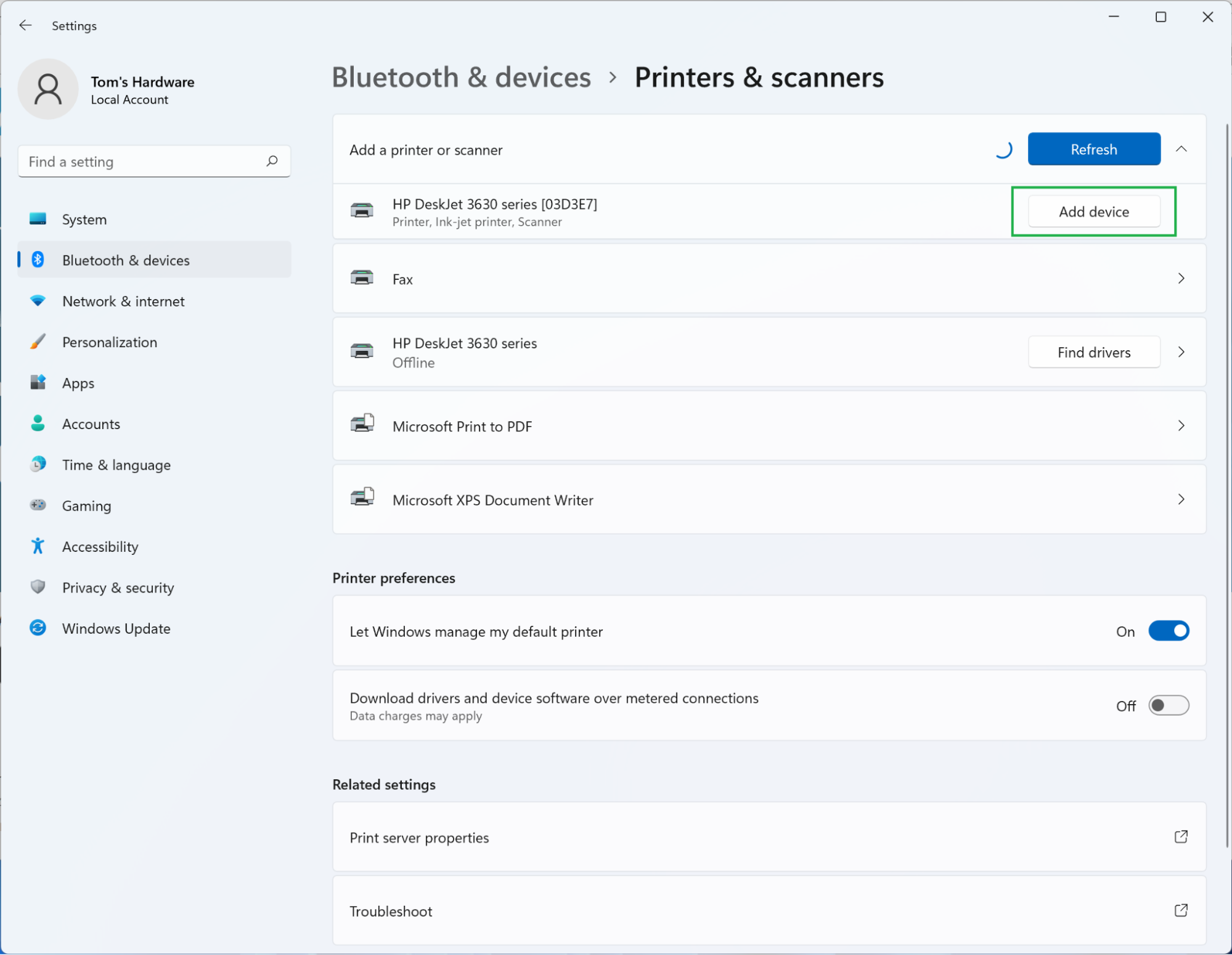
How to Add a Printer in Windows 11 or 10 | Tom's Hardware
- Select the problematic printer (if listed) and click "Printer properties" > "Advanced" tab > "New Driver" to update it. Alternatively, remove the printer and add it again by clicking "Add device."
- If needed, download the latest drivers from the printer manufacturer's website (e.g., HP, Epson) and install them manually.
Updating ensures compatibility with Windows 11's security features.
Step 4: Disable Point and Print Restrictions
Windows 11's default security policies might block shared printer installations.
- If you're on Windows 11 Home (which lacks Group Policy Editor by default), download and install it from a trusted source like itechtics.com.
- Press Windows key + R, type gpedit.msc, and press Enter to open the Local Group Policy Editor.
- Navigate to Computer Configuration > Administrative Templates > Printers.
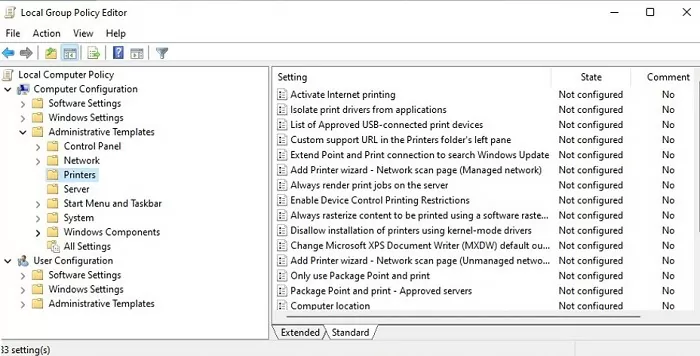
Enable Group Policy Editor (gpedit.msc) on Windows 10/11 Home ...
- Double-click "Point and Print Restrictions," set it to Disabled, and click OK. Restart the Print Spooler service as in Step 1.
This relaxes restrictions on installing drivers from shared sources.
Step 5: Enable SMB 1.0 for Compatibility
If the shared printer is hosted on an older Windows version (e.g., Windows 7), enable SMB 1.0 protocol.
- Go to Settings > Apps > Optional features > View features.
- Search for "SMB 1.0/CIFS File Sharing Support," check the box, and click Next to install.
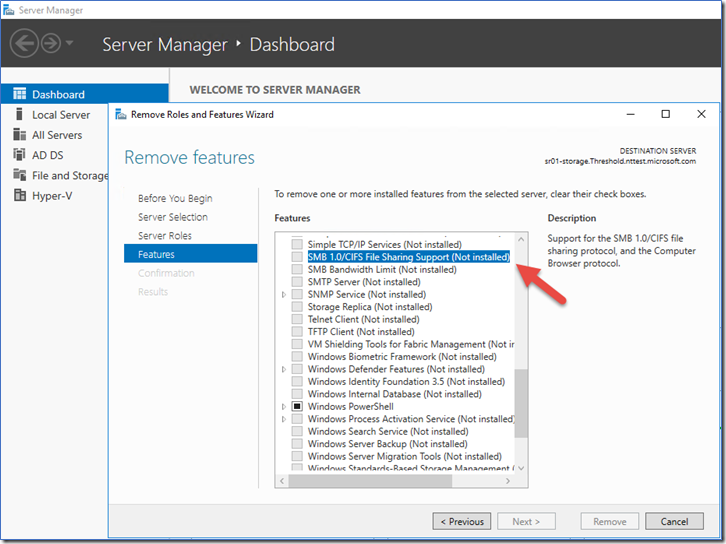
Detect, enable, and disable SMBv1, SMBv2, and SMBv3 in ...
- Restart your PC after installation.
This is crucial for legacy network sharing but note that SMB 1.0 has security risks—use it only if necessary.
Step 6: Adjust RPC Settings via Registry
Strict RPC (Remote Procedure Call) privacy settings in Windows 11 can block shared printer access.
- Press Windows key + R, type regedit, and press Enter to open the Registry Editor.
- Navigate to HKEY_LOCAL_MACHINE\System\CurrentControlSet\Control\Print.
- Right-click in the right pane, select New > DWORD (32-bit) Value, name it "RpcAuthnLevelPrivacyEnabled," and set its value to 0.
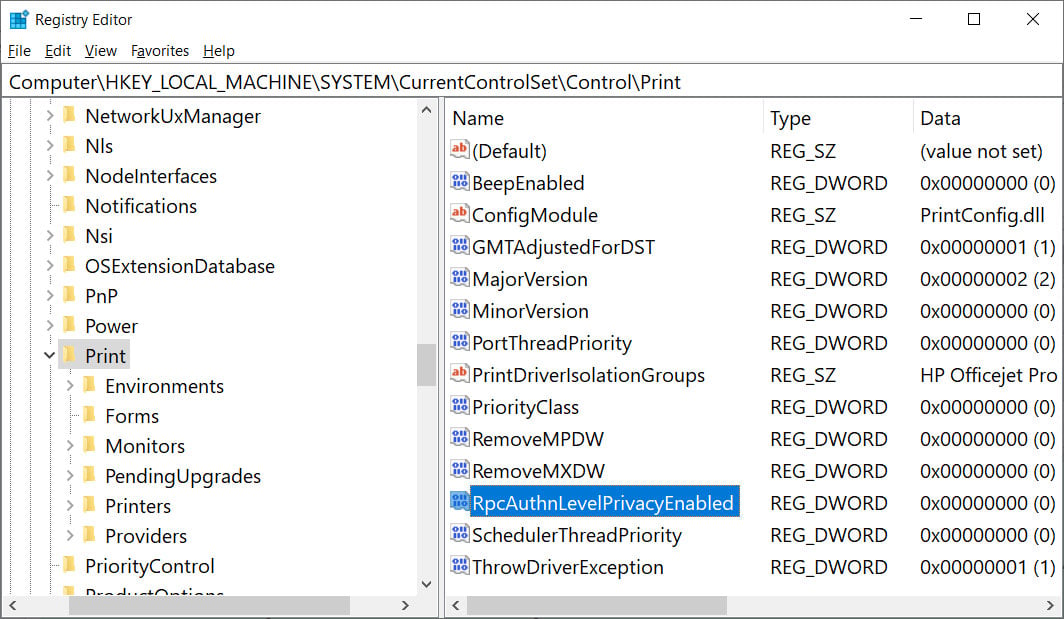
How to fix the Windows 0x0000011b network printing error
- Close the Registry Editor and restart your computer.
Warning: Editing the registry can cause system issues if done incorrectly—back up your registry first.
Step 7: Temporarily Disable Windows Firewall
Firewall rules might be blocking the connection.
- Go to Settings > Privacy & security > Windows Security > Firewall & network protection.
- For your active network (e.g., Private network), toggle the Microsoft Defender Firewall to Off.
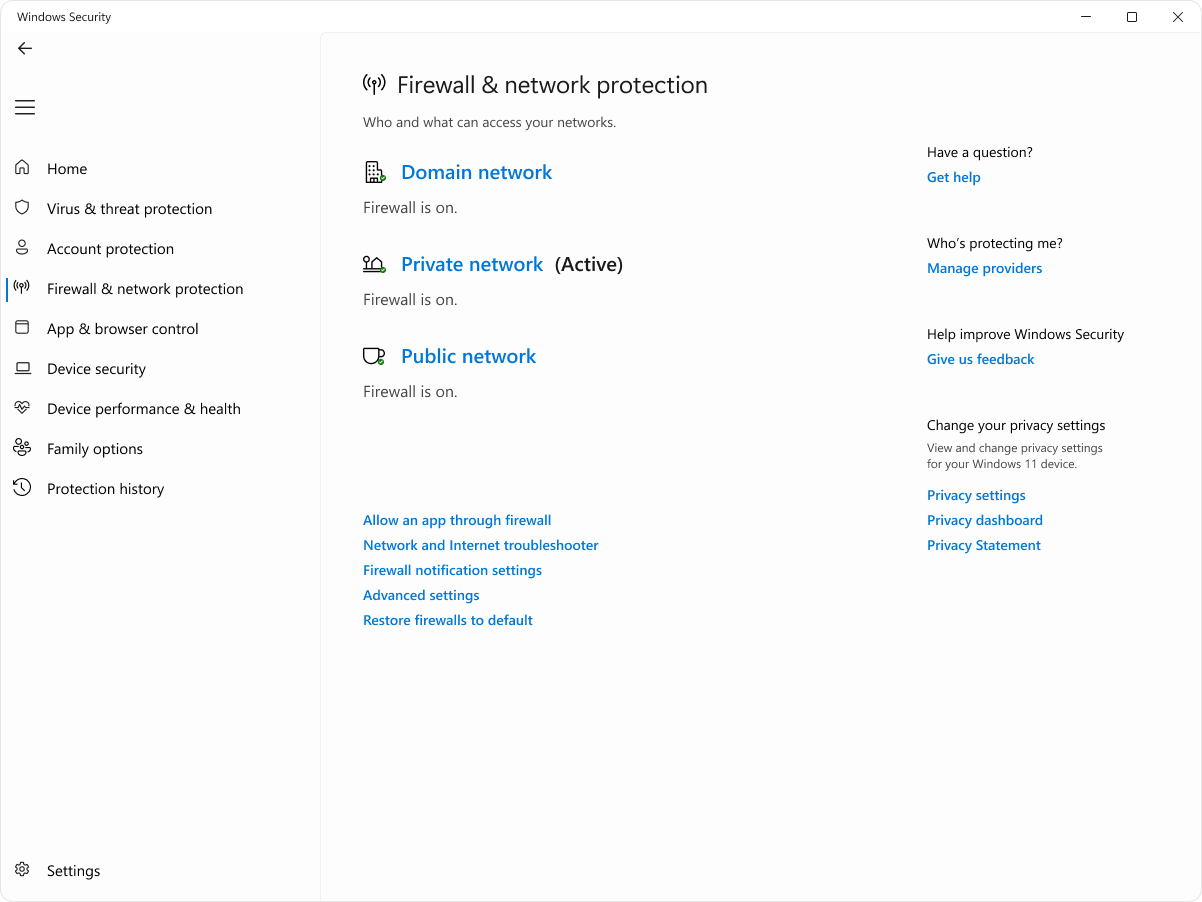
Firewall and Network Protection in the Windows Security App ...
- Test the printer connection, then re-enable the firewall for security.
If this resolves the issue, consider adding a firewall exception for File and Printer Sharing.
Additional Tips
- Enable Required Services: In Services (from Step 1), ensure "Computer Browser" (if available) and "Workstation" are set to Automatic and running.
- Use IP Address Instead of Name: Try connecting to the printer using the host PC's IP address (e.g., \192.168.1.100\PrinterName) instead of the computer name.
- Add Credentials: On the client PC, go to Credential Manager (search in taskbar) and add Windows credentials for the host PC.
- Advanced Registry Edits: If needed, apply additional keys as mentioned in specialized forums, but consult a professional.
- If issues persist, consider using a print server device or updating to compatible hardware.
After applying these steps, you should be able to connect to the shared printer without error 0x00000040. If the problem continues, check for Windows updates or seek help from the printer manufacturer's support.
