The Blue Screen of Death (BSOD) error 0xc000021a in Windows 10 is a critical system error that prevents the operating system from booting properly. This error often manifests as a blue screen with the message "Your PC ran into a problem and needs to restart," accompanied by the stop code 0xc000021a. It typically occurs during startup, leading to boot loops that can be frustrating and disruptive.
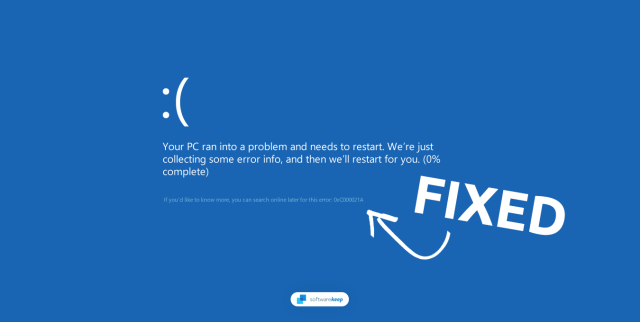
Windows 10: BSOD Error 0xC000021A Fixed
This issue signals a failure in core Windows processes, and addressing it promptly is essential to regain access to your system.
Causes of Error 0xc000021a
Understanding the root causes can help prevent recurrence. Based on common reports and technical analyses, the error is frequently triggered by:
- Corrupted System Files: Damage to essential files like Winlogon.exe (responsible for user logins) or Csrss.exe (Client Server Runtime Subsystem) can cause the system to crash.
- Failed Software Installations or Upgrades: Incomplete or faulty installations, especially during Windows updates, can corrupt critical components.
- Hardware Conflicts or Driver Issues: Incompatible or outdated drivers, particularly for graphics cards or storage devices, may interfere with boot processes.
- Malware or Virus Infections: Malicious software can alter system files, leading to instability.
- External Devices: Connected peripherals like USB drives, printers, or scanners might cause conflicts during boot.
- Disk Errors: Bad sectors on the hard drive or file system corruption from improper shutdowns.
If your system is in a boot loop, you'll need to access recovery tools. Disconnect all external devices before starting troubleshooting. The following steps provide a systematic approach to resolve the error. Perform them in order, testing boot after each.
Step 1: Access Advanced Startup Options
To begin repairs, boot into the Windows Recovery Environment (WinRE). If your PC automatically enters recovery after failed boots, proceed directly. Otherwise:
- Force a shutdown by holding the power button during boot (repeat 2-3 times to trigger automatic repair).
- Once in the blue recovery screen, select "Troubleshoot" > "Advanced options."
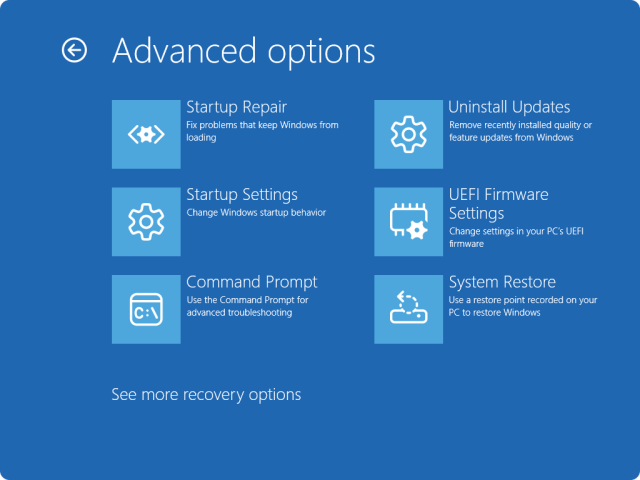
Windows Startup Settings - Microsoft Support
This menu provides access to various repair tools.
Step 2: Run Startup Repair
Startup Repair can automatically detect and fix boot-related issues.
- From Advanced options, select "Startup Repair."
- Follow the prompts to let Windows diagnose and repair problems.
Startup Repair - Microsoft Support
If successful, your PC should boot normally. If not, proceed to the next step.
Step 3: Open Command Prompt in Recovery Environment
For manual repairs, use Command Prompt from WinRE.
- From Advanced options, select "Command Prompt."
- Sign in with your admin credentials if prompted.
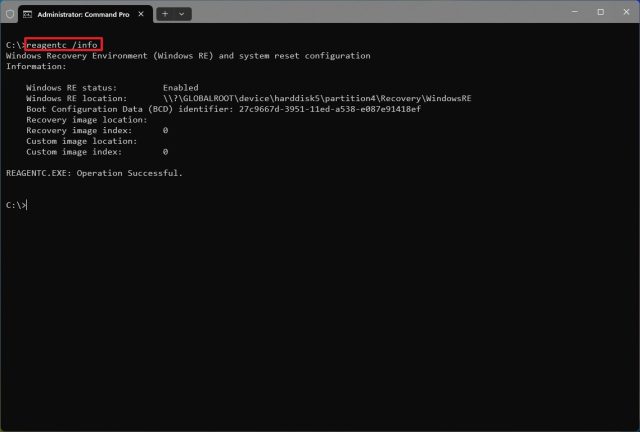
How to enable Windows Recovery Environment (WinRE) on Windows 11 ...
This provides a command-line interface for system scans.
Step 4: Run System File Checker (SFC)
SFC scans and repairs corrupted system files.
- In Command Prompt, type sfc /scannow and press Enter.
- Wait for the scan to complete (it may take 10-30 minutes).
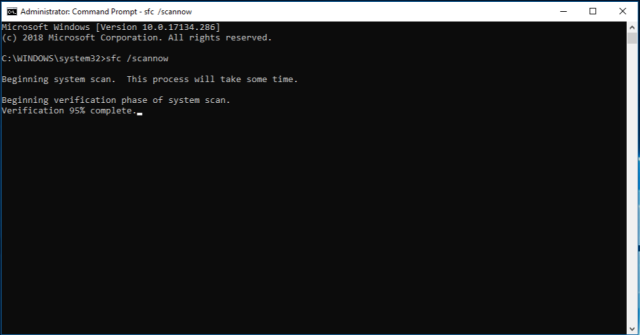
Use the System File Checker tool to repair missing or corrupted ...
Restart via the recovery menu after the process finishes.
Step 5: Run Check Disk (CHKDSK)
CHKDSK fixes disk errors and bad sectors.
- In Command Prompt, type chkdsk C: /f /r (replace C: with your system drive if different) and press Enter.
- Type Y to schedule the scan on restart, then exit and reboot.
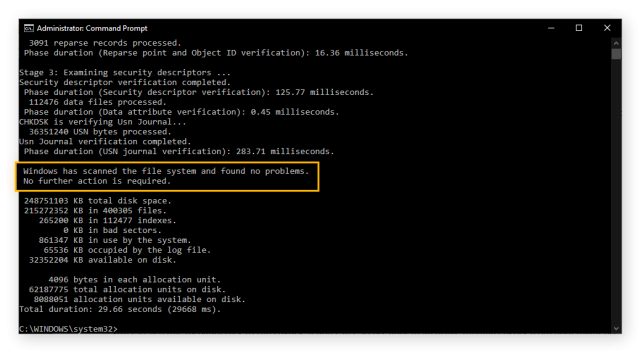
CHKDSK /F /R /X Commands to Scan & Fix Hard Drives
The scan will run before Windows loads.
Step 6: Boot into Safe Mode
Safe Mode loads minimal drivers to isolate issues.
- From Advanced options, select "Startup Settings" > "Restart."
- After restart, press 4 or F4 for Safe Mode.
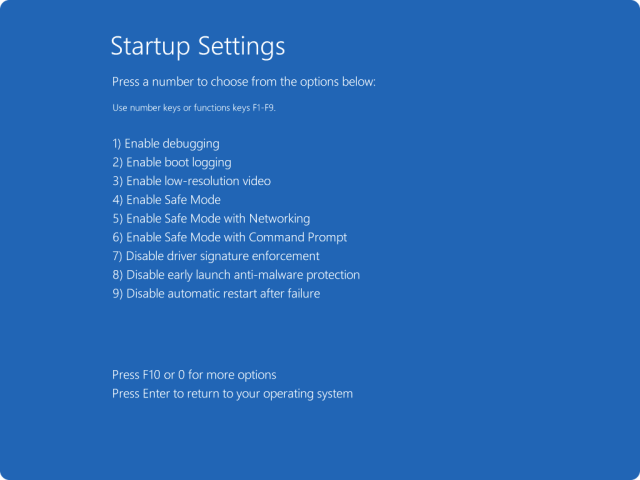
Windows Startup Settings - Microsoft Support
In Safe Mode, run antivirus scans or uninstall recent software.
Step 7: Perform System Restore
Revert to a previous stable state.
- From Advanced options, select "System Restore."
- Choose a restore point from before the error started and confirm.
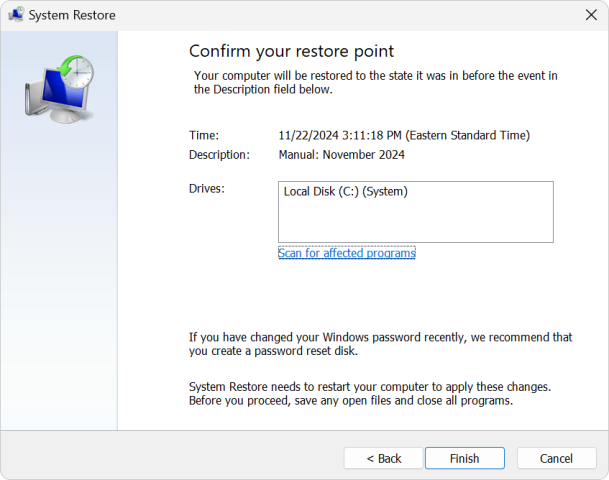
System Restore - Microsoft Support
This undoes recent changes without affecting personal files.
Step 8: Check and Update Drivers
Faulty drivers can be updated or rolled back.
- In Safe Mode, right-click Start > Device Manager.
- Expand categories, right-click devices, and select "Update driver" or "Roll back driver."
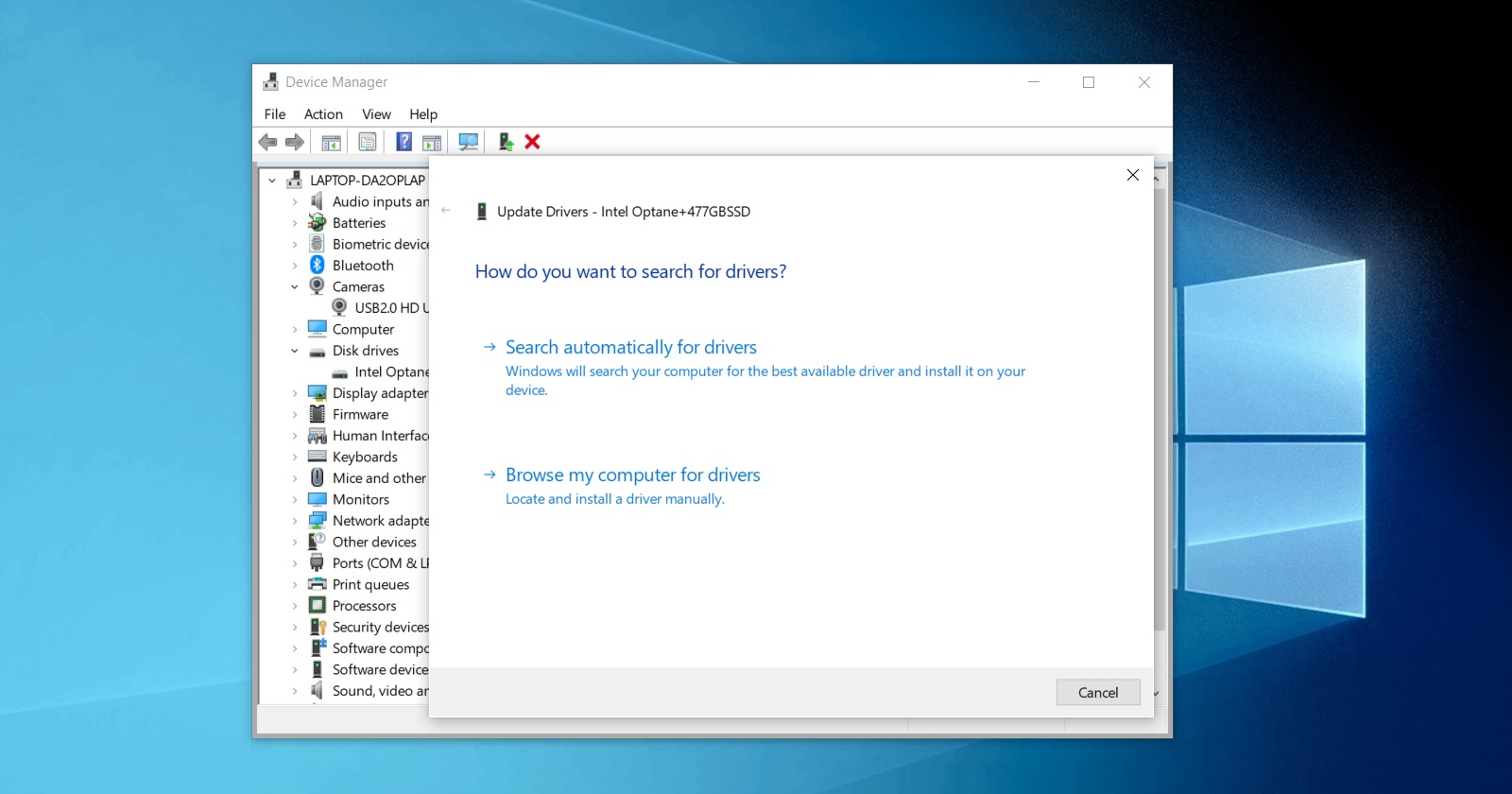
Device Manager is losing one key feature on Windows 10
Focus on display, storage, and network adapters.
Step 9: Reset This PC (Last Resort)
If all else fails, reset Windows while keeping files.
- From Advanced options, select "Troubleshoot" > "Reset this PC."
- Choose "Keep my files" and follow the prompts.
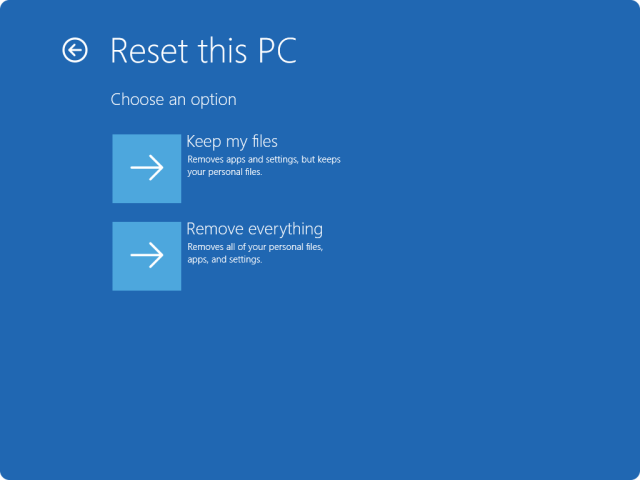
Reset your PC - Microsoft Support
This reinstalls Windows but preserves data.
Additional Tips
- Disable Driver Signature Enforcement: If booting fails due to drivers, from Startup Settings, press 7 or F7 to disable it temporarily.
- Run Antivirus: Use Windows Defender or third-party tools in Safe Mode to scan for malware.
- Check Hardware: Test RAM or HDD for faults using tools like MemTest86 or hardware diagnostics.
- If the issue persists after these steps, consider professional help or a clean Windows installation from bootable media.
By following these methods, most users can resolve the 0xc000021a error and restore normal functionality. Always back up important data when possible.
