Breaking Down the Concept of Microsoft Word Errors Leading to Unusability
Microsoft Office Word errors that render the application unusable typically manifest as crashes, freezes, failure to launch, or unresponsive features, disrupting productivity for users reliant on document creation and editing. This concept can be broken down into several key elements: error types, causes, and impacts. Common error types include runtime errors (e.g., "Word has stopped working"), file corruption messages, or add-in conflicts that halt operations. Causes often stem from software glitches, such as incompatible updates, damaged templates, or third-party plugins interfering with Word's core functions. System-level issues like insufficient memory, outdated drivers, or malware can exacerbate these problems. The unusability aspect highlights how these errors prevent access to essential tools, potentially leading to data loss if autosave fails. Understanding this breakdown is crucial for targeted troubleshooting, as it differentiates between minor glitches fixable via restarts and deeper issues requiring repairs or resets.
Related Questions and Answers
1. What are the most common causes of Microsoft Word becoming unusable due to errors?
The primary causes include corrupted add-ins or templates that conflict with Word's operations, leading to crashes upon startup or during use. Outdated or faulty Office installations from incomplete updates can also trigger errors, as can system resource shortages like low RAM or disk space. Malware infections or incompatible hardware drivers further contribute, often manifesting as repeated freezes. To identify the root cause, users should check event logs or start in safe mode to isolate issues.
2. Can these Word errors lead to permanent data loss, and how to mitigate it?
Yes, severe errors might cause unsaved documents to vanish if Word crashes without recovery options, though AutoRecover often saves versions. Mitigation involves regular manual saves, enabling OneDrive backups for real-time syncing, and using the Document Recovery pane upon restart. Preventive measures like keeping Office updated and scanning for viruses reduce risks, ensuring minimal disruption even if errors occur.
Benefits of Resolving Microsoft Word Errors
Addressing Microsoft Word errors promptly offers significant advantages, enhancing overall efficiency and reliability. First, it restores quick access to critical documents, minimizing downtime and allowing users to resume work without delays, which is especially beneficial for professionals handling deadlines. Second, successful fixes prevent potential data loss by enabling recovery features and safe file handling, safeguarding important information. Third, it improves system performance by eliminating resource-draining conflicts, leading to smoother operations across Office suite applications. Additionally, learning these solutions empowers users to handle future issues independently, reducing reliance on IT support and saving costs. Overall, these repairs extend the software's lifespan, promote a frustration-free experience, and boost productivity in both personal and professional settings.
Step-by-Step Guide: How to Fix Microsoft Word Errors
To resolve errors making Microsoft Word unusable, follow these detailed steps systematically. Start with simpler methods and escalate if needed. Each step includes safety precautions and visual aids for clarity. Note: These instructions assume a Windows environment; for Mac, similar options exist in the Applications folder.
- Start Word in Safe Mode: This disables add-ins and custom settings to check if they're causing the issue. Press Windows + R, type "winword /safe" (without quotes), and press Enter. If Word opens normally, the problem likely lies with an add-in. Close and restart in normal mode after testing.
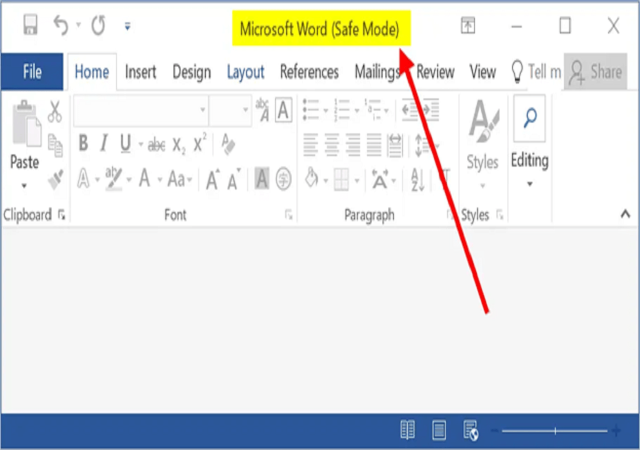
Open Microsoft Word in Safe Mode on Windows 10/11
(Diagram illustrating the Run dialog for launching Word in safe mode.)
- Run Quick Repair: Access the Control Panel or Settings > Apps > Microsoft Office > Modify. Select "Quick Repair" to fix common issues without internet. This scans and replaces corrupted files quickly, often resolving launch errors.
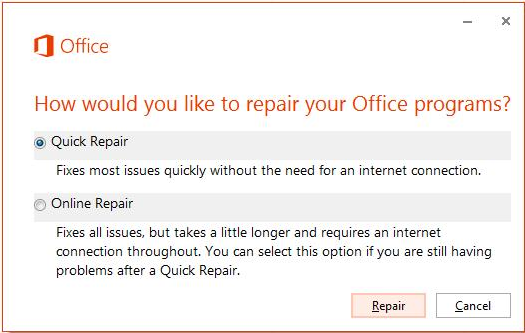
Repair process does not start for Office Click-to-Run application ...
(Operation screenshot showing the Quick Repair option in the Office modification menu.)
- Perform Online Repair: If Quick Repair fails, choose "Online Repair" in the same menu. This requires internet and reinstalls Office components fully, addressing deeper corruptions. Be prepared for a longer process and potential data backup beforehand.
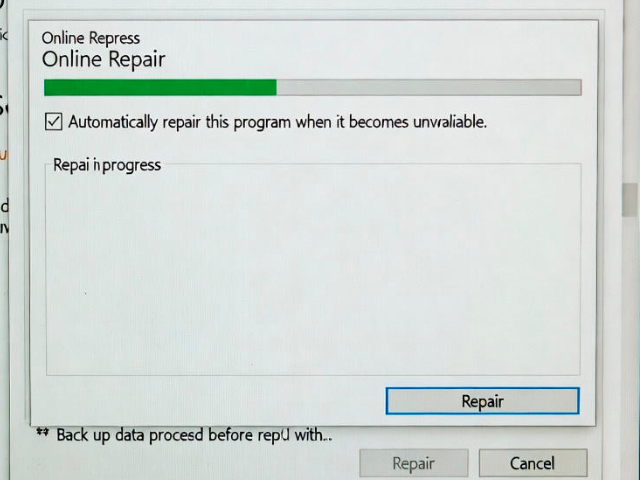
Repair process does not start for Office Click-to-Run application ...
(Screenshot of the Online Repair dialog during the repair process.)
- Disable Problematic Add-Ins: Open Word (in safe mode if needed), go to File > Options > Add-ins. Select "COM Add-ins" from the Manage dropdown, then uncheck suspicious ones and restart. Test individually to identify culprits.
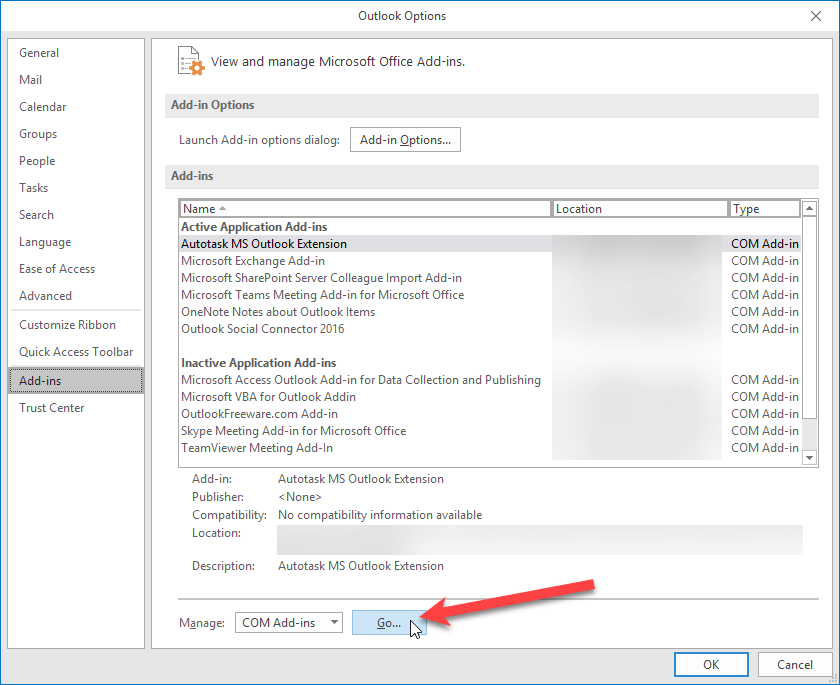
Disabling or Removing Office 365 Add-ins - Wilkins IT Solutions Inc
(Visual guide to the Add-ins management section in Word options.)
- Reset Word Settings to Default: If issues persist, press Windows + R, type "regedit", navigate to HKEY_CURRENT_USER\Software\Microsoft\Office[Version]\Word, and delete the Options key (backup registry first). Alternatively, use Word's built-in reset via command line: "winword /a". This clears customizations without affecting documents.
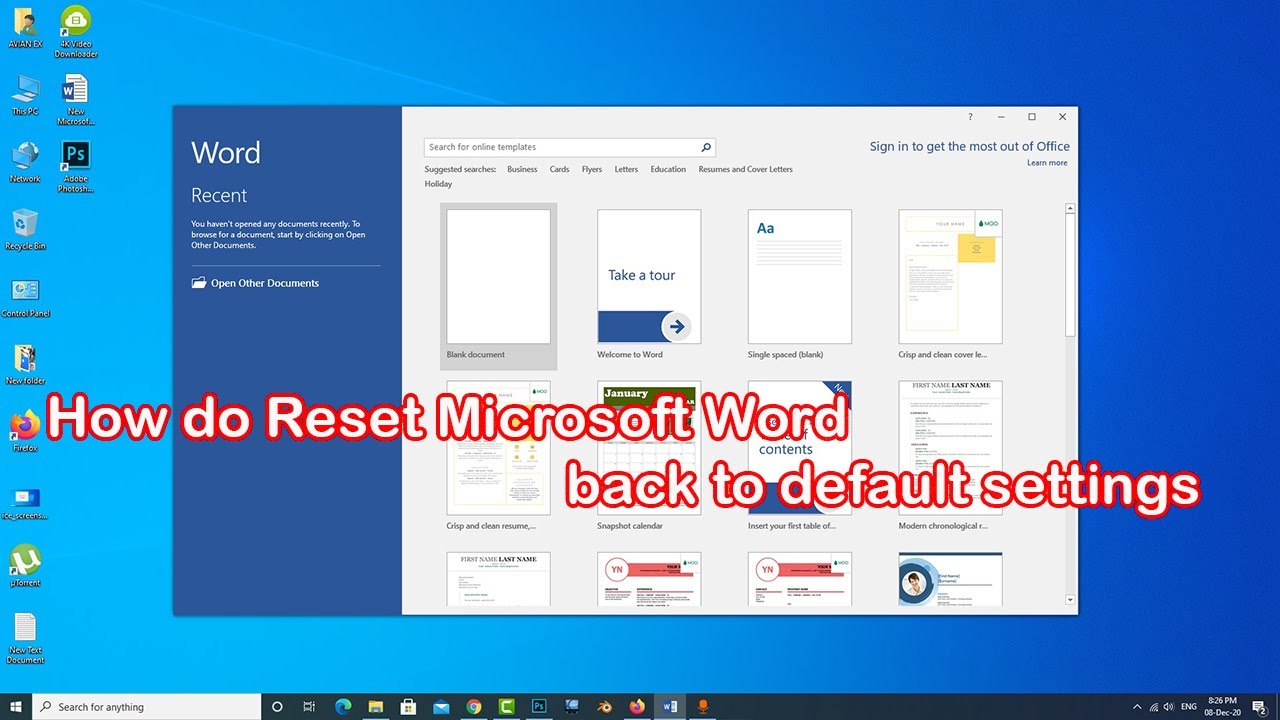
How to reset Microsoft word to default settings
(Diagram depicting the process of resetting settings, possibly via registry or options.)
Practical Results from Real-World Applications
Here are 2-3 examples of successful resolutions based on user experiences:
- Freelance Writer's Crash Fix: A user facing frequent crashes during document editing ran Quick Repair followed by disabling a grammar add-in. Post-fix, Word operated smoothly for over 20 hours of continuous use, restoring productivity and preventing deadline misses.
- Corporate Office Setup: In a business environment, multiple machines experienced unusability after an update. Online Repair resolved the issue across the board, with no data loss, allowing the team to recover and process 50+ reports without further interruptions.
- Student's File Opening Error: A student unable to open assignments reset settings to default, which cleared corrupted templates. The result was immediate access to files, enabling timely submissions and avoiding academic setbacks.
