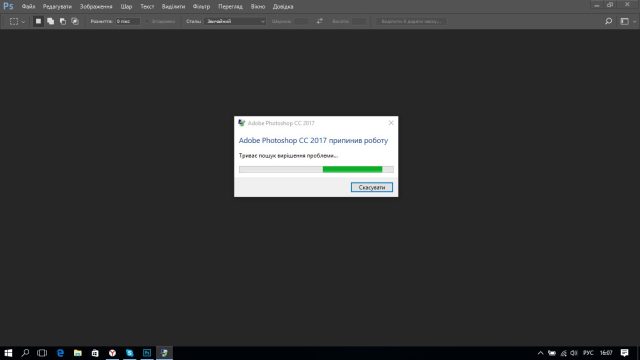
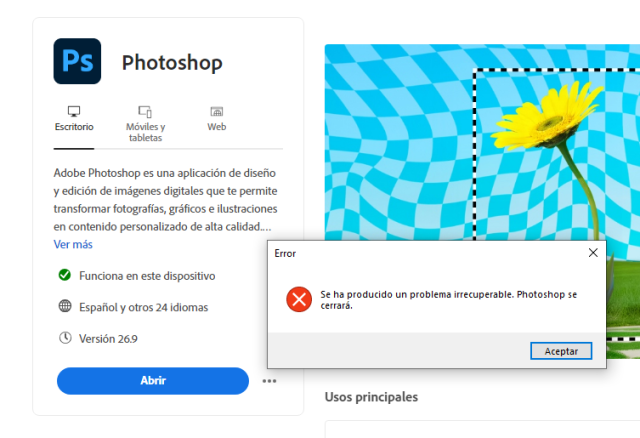
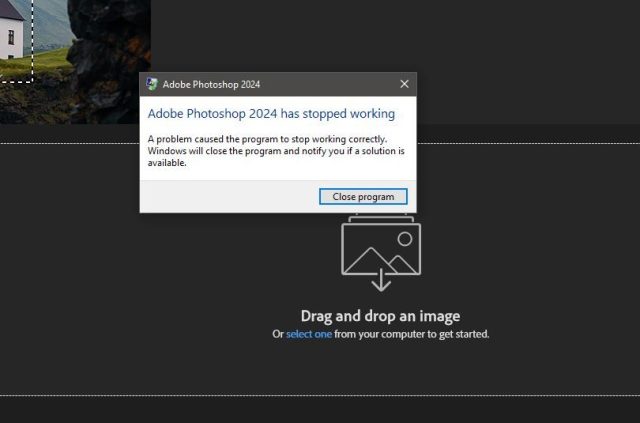
A fatal error in Adobe Photoshop refers to a critical crash that forces the program to close unexpectedly. It often appears as messages like "Adobe Photoshop has encountered a fatal error and must close," "An unrecoverable error has occurred," or a full system crash during startup, opening files, or using tools. In Chinese, users commonly search for "fatal error" when seeing these dialogs.
This issue is widespread across Photoshop versions (including 2025 releases) and is usually caused by outdated graphics drivers, corrupted preferences, incompatible GPU acceleration, plugin conflicts, insufficient system resources, or installation damage.
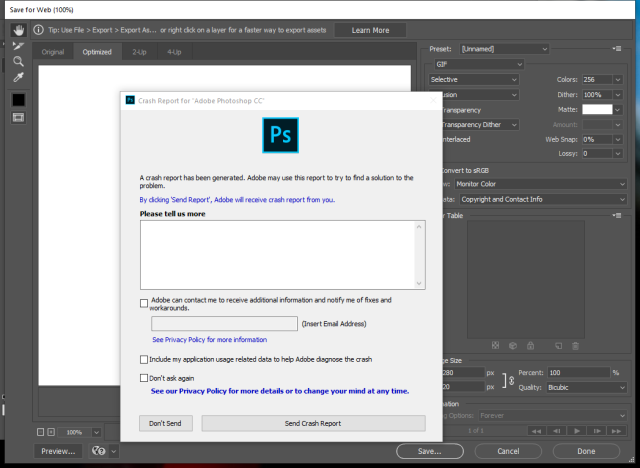
Here are common examples of the error:
Follow these steps in order—most users fix it within the first few.
1. Update Photoshop to the Latest Version
Bugs causing fatal errors are often patched in updates.
- Open the Adobe Creative Cloud desktop app.
- Go to the Apps tab, check for updates, and install the latest Photoshop version.
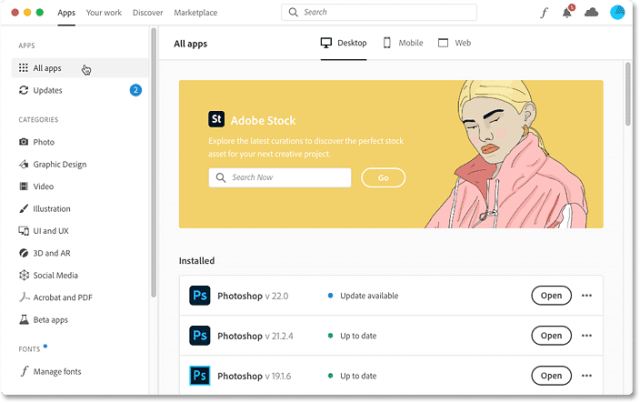
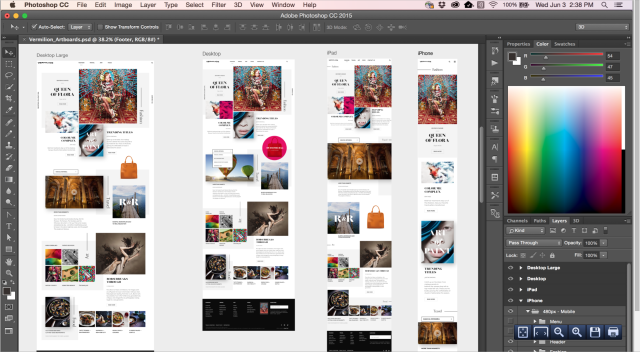
Restart your computer after updating.
2. Reset Photoshop Preferences
Corrupted preferences are a top cause of crashes.
- Launch Photoshop while holding Ctrl + Alt + Shift (Windows) or Cmd + Option + Shift (Mac).
- Confirm to delete the preferences file when prompted.
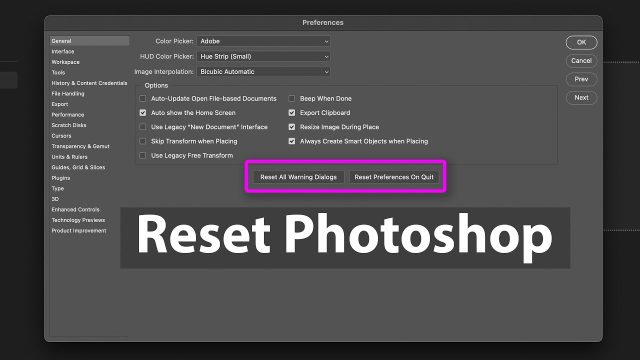
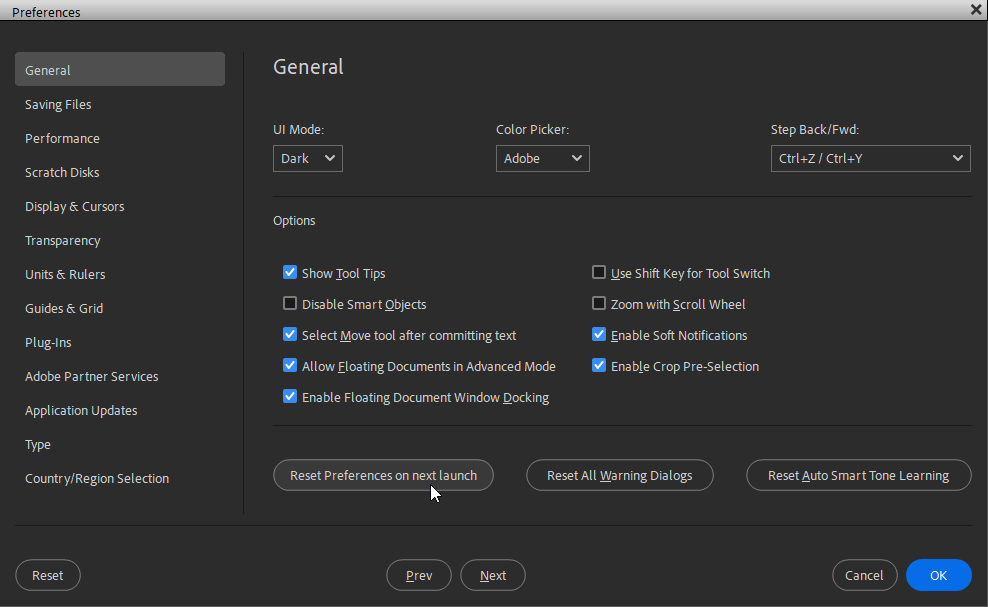
This resets settings to default without losing brushes or actions.
3. Update Your Graphics Card Driver
Outdated or faulty GPU drivers frequently trigger fatal errors, especially with GPU-accelerated features.
- For NVIDIA/AMD/Intel: Visit the manufacturer's website and download the latest driver.
- Alternatively, on Windows: Right-click Start > Device Manager > Display adapters > Right-click your GPU > Update driver.
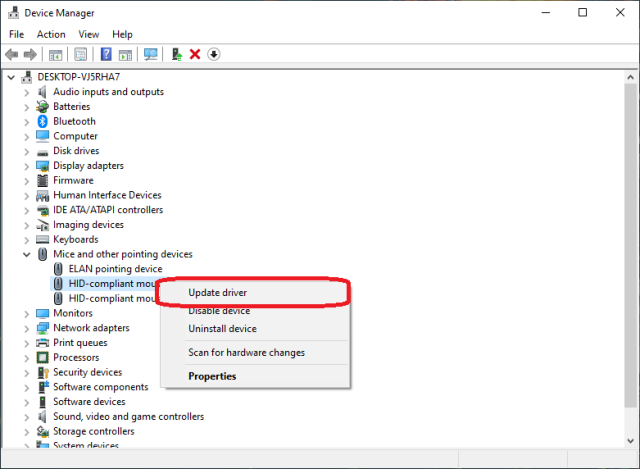
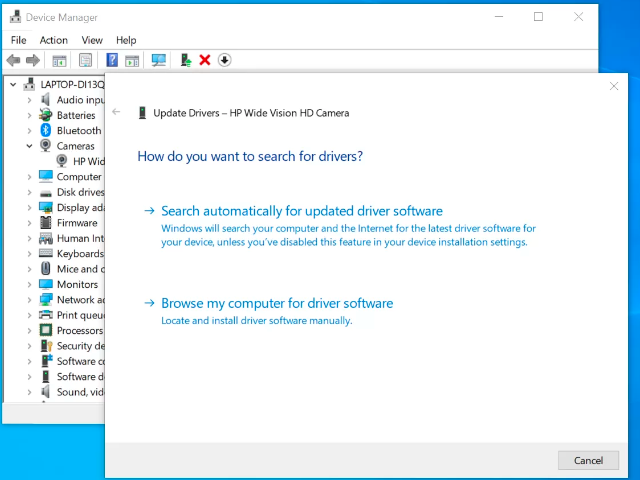
Restart after installation.
4. Disable GPU Acceleration in Photoshop
If the crash persists, temporarily turn off graphics processor usage.
- Go to Edit > Preferences > Performance.
- Uncheck Use Graphics Processor and restart Photoshop.
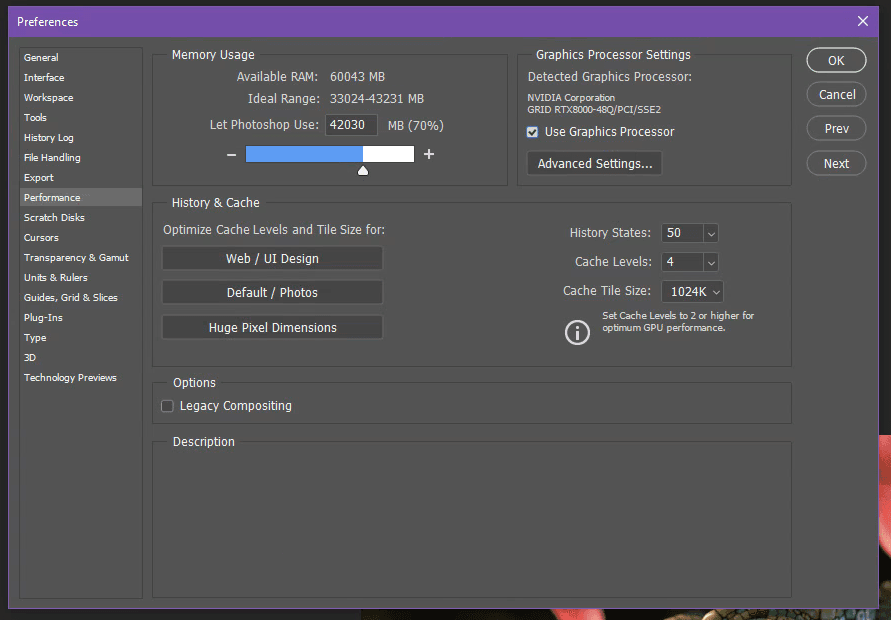
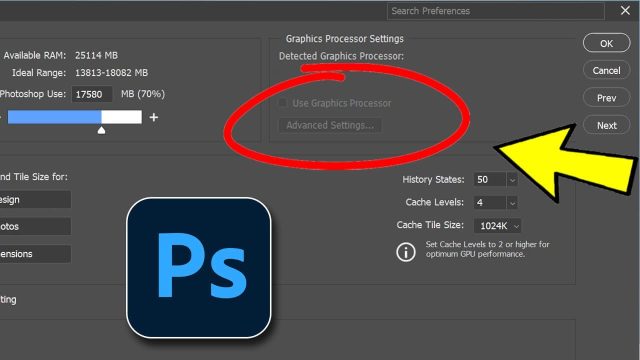
Re-enable it after updating drivers if desired.
5. Reinstall Photoshop Cleanly
For persistent issues, remove and reinstall.
- In Creative Cloud, uninstall Photoshop (click the three dots next to it > Uninstall).
- Download and run the Adobe Creative Cloud Cleaner Tool from Adobe's website to remove leftovers.
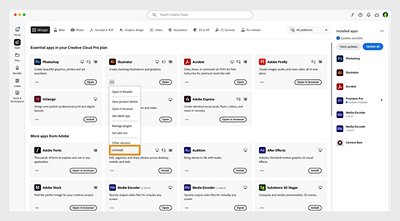
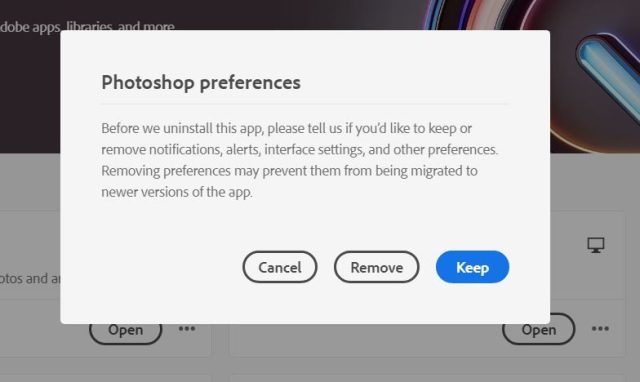
Then reinstall from Creative Cloud.
Additional Tips
- Disable third-party plugins (hold Shift while launching to skip them).
- Ensure your system meets Photoshop's requirements (adequate RAM, updated OS).
- Run Photoshop as administrator (Windows).
- If using a laptop, plug in power and set to high-performance mode.
These steps resolve fatal errors for the majority of users. Start with updates and preference resets—they're quick and effective. If nothing works, submit a crash report to Adobe Support with your system details.
