Part 1: Breaking Down the Concept
The Windows error code 0xc0000142, often displayed as "The application was unable to start correctly (0xc0000142)," indicates a failure in application initialization. This error typically occurs when a program attempts to load but encounters issues with dynamic link libraries (DLLs) or system resources. Breaking it down:
- DLL Loading Failure: At its core, this error stems from Windows' inability to locate or properly initialize required DLL files. DLLs are shared libraries that provide reusable code for applications, and if they're missing, corrupted, or incompatible, the app crashes during startup.
- Common Triggers: It frequently affects software like Microsoft Office applications (e.g., Excel, Word), games, or third-party programs. Causes include corrupted system files, outdated components like Visual C++ Redistributable or DirectX, permission restrictions, malware interference, or conflicts post-Windows updates.
- System Impact: This is a runtime error classified under NTSTATUS codes, specifically STATUS_DLL_INIT_FAILED, signaling that the application's entry point couldn't execute properly. It disrupts user productivity by preventing apps from launching, but it's usually fixable without hardware changes.
Understanding this error helps in troubleshooting, as it points to software-level issues rather than hardware failures.
Part 2: Related Questions and Answers
- What are the most common programs affected by error 0xc0000142? This error commonly impacts Microsoft Office suite applications, video games (especially those using older engines), and certain antivirus tools. For Office, it often arises from failed updates or corrupted add-ins. In games, it's linked to missing DirectX files or GPU driver incompatibilities. The prevalence in these areas is due to their heavy reliance on system DLLs for initialization.
- Is error 0xc0000142 a sign of malware or a virus? Not necessarily, but it can be. While the error is often benign (e.g., from software conflicts or updates), malware can corrupt DLLs or inject malicious code, triggering this issue. Running a scan with Windows Defender or a reputable antivirus is advisable to rule out infections, as unresolved malware could lead to recurring errors or broader system instability.
Part 3: Benefits of Fixing This Error
Addressing the 0xc0000142 error brings several advantages to your Windows experience:
- Restored Functionality: You'll regain access to affected applications, ensuring uninterrupted work or entertainment. For instance, Office users can resume editing documents without crashes, boosting productivity.
- Enhanced System Stability: Fixing underlying causes like corrupted files or outdated components prevents similar errors in other programs, leading to a smoother, more reliable OS overall.
- Security Improvements: If malware is involved, resolving the error strengthens your system's defenses, reducing risks of data loss or unauthorized access.
- Cost Savings: DIY fixes avoid the need for professional IT help or software replacements, saving time and money while empowering you with troubleshooting skills for future issues.
Part 4: Step-by-Step Guide on How to Fix It
Follow these detailed steps to resolve the error. Start with the simplest and progress if needed. Restart your PC after each step to test. For visual guidance, operation screenshots are provided below each relevant step.
- Run the Application as Administrator Right-click the program's executable or shortcut, select "Properties," go to the "Compatibility" tab, and check "Run this program as an administrator." This grants necessary permissions to load DLLs.
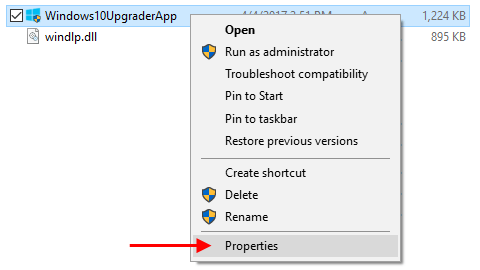
6 Ways to Run an App as Administrator in Windows 10
- Set Compatibility Mode In the same Properties window, under the Compatibility tab, enable "Run this program in compatibility mode for" and select an older Windows version (e.g., Windows 8). This helps with legacy software on newer systems.
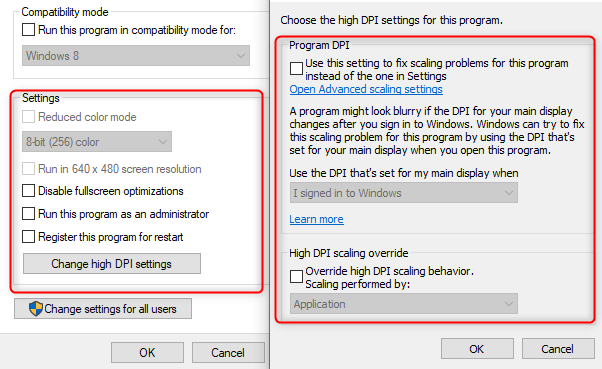
How do I clear the cache of previous compatibility mode settings ...
- Repair the Affected Program For Microsoft Office: Go to Settings > Apps > Apps & features, find Microsoft Office, click "Modify," and select "Online Repair." This reinstalls corrupted files. For other apps, uninstall and reinstall from the official source.
![Office Repair Tools That Work for 2007- 2021 & 365 [2025]](https://pcsoftweb.com/wp-content/uploads/2025/12/microsoft-office-repair-tool-640x427.jpg)
Office Repair Tools That Work for 2007- 2021 & 365 [2025]
- Update Windows and Drivers Open Settings > Update & Security > Windows Update, and click "Check for updates." Also, update graphics drivers via the manufacturer's website.
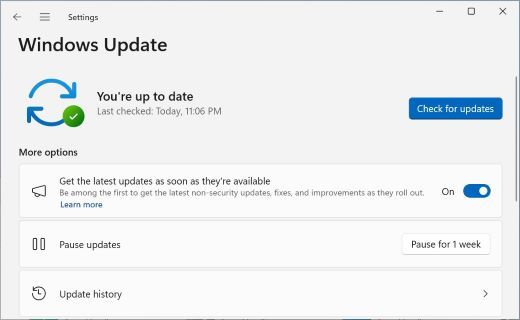
Get Windows updates as soon as they're available for your device ...
- Run System File Checker (SFC) and DISM Open Command Prompt as Administrator, type sfc /scannow, then DISM /Online /Cleanup-Image /RestoreHealth. These tools repair corrupted system files.
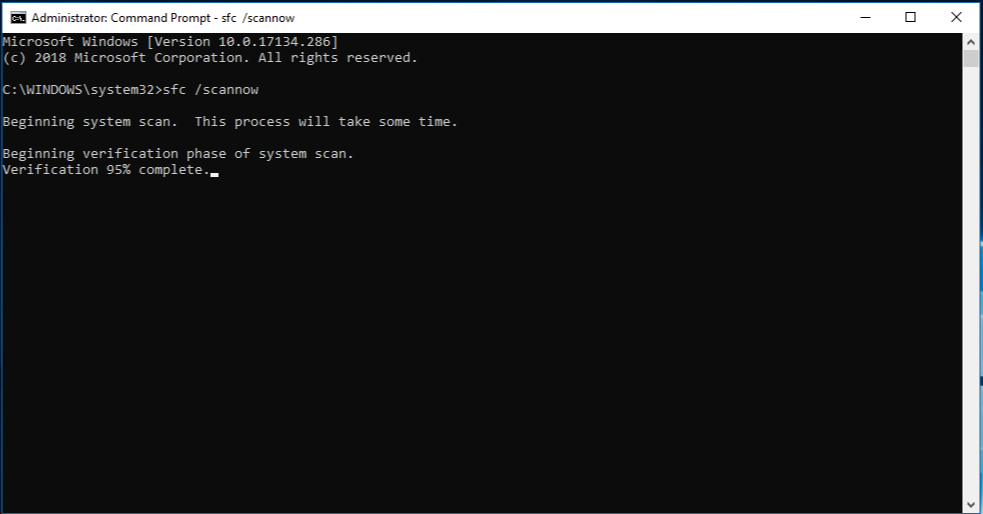
Use the System File Checker tool to repair missing or corrupted ...
- Reinstall Microsoft Visual C++ Redistributable Uninstall existing versions via Apps & features, then download and install the latest from Microsoft's website (x86 and x64).
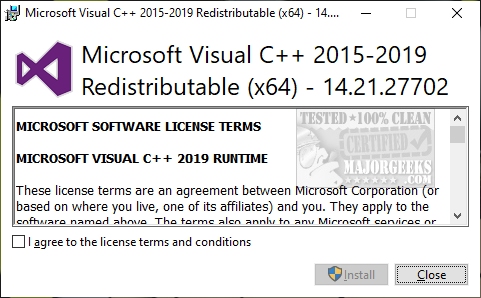
Download Microsoft Visual C++ 2015-2022 Redistributable Package ...
- Scan for Malware Open Windows Security > Virus & threat protection, and run a "Full scan." Remove any threats found.
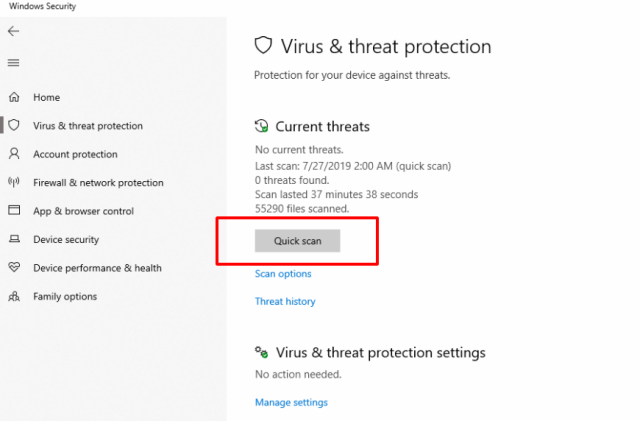
How to run a virus scan with Windows Defender - Service Desk
- Edit the Registry (Advanced) Open Registry Editor (regedit), navigate to HKEY_LOCAL_MACHINE\SOFTWARE\Microsoft\Windows NT\CurrentVersion\Windows, set "LoadAppInit_DLLs" to 0, and restart. Backup the registry first.
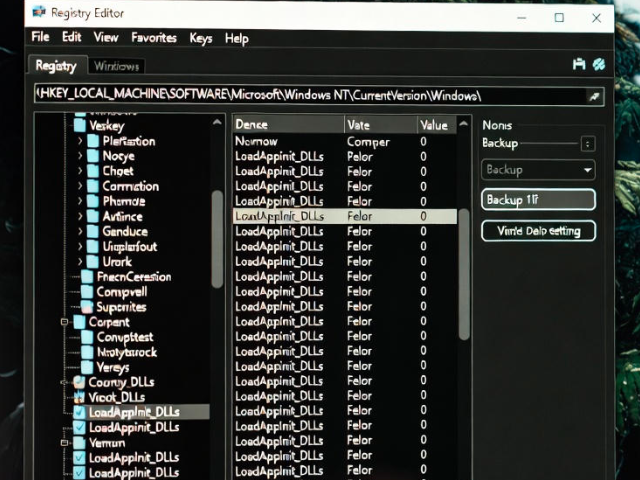
Persistence – AppInit DLLs – Penetration Testing Lab
If issues persist, consider a System Restore or Windows reset.
Part 5: Practical Results from Fixes
- Case 1: Office Application Recovery A user with Excel crashing on launch applied the repair tool and Visual C++ reinstall. Post-fix, Excel opened seamlessly, allowing them to complete a 50-page spreadsheet project without interruptions, saving hours of rework.
- Case 2: Gaming Issue Resolved For a gamer facing the error in an older title, setting compatibility mode and updating DirectX fixed it. The game ran smoothly at 60 FPS, enhancing the gaming experience and preventing further crashes in similar apps.
- Case 3: System-Wide Stability After running SFC/DISM and a malware scan, a professional user noted not only the error's disappearance but also improved boot times and reduced random freezes, leading to a more efficient workflow across multiple programs.
